Transport Fever 3 · PC · Save-loading troubleshooting
Transport Fever 3 crashes loading a save: preserve it, then isolate the cause
On this page
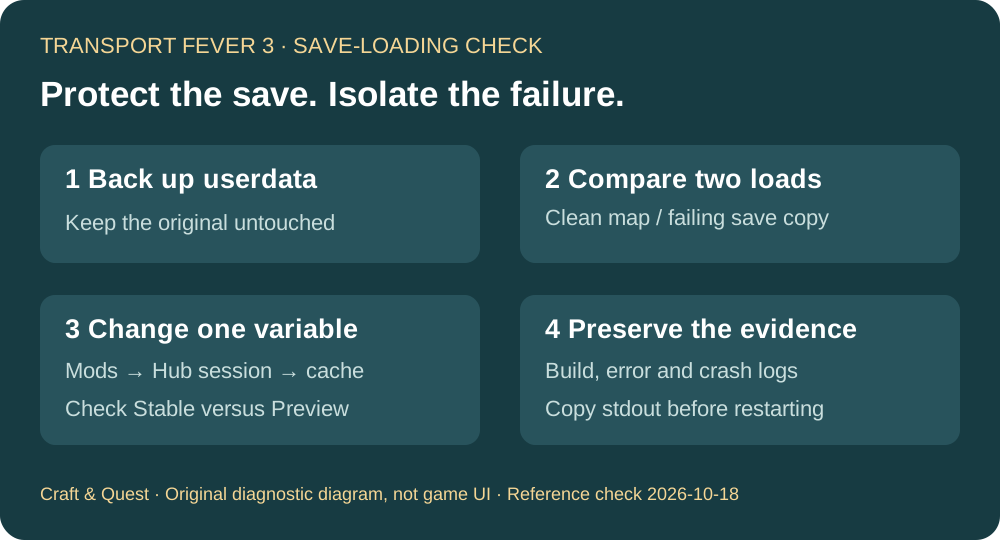
Back up your userdata first. Compare a new unmodded map with a copy of the failing save, then test mods, Mod Hub login and the shader cache separately. Check your installed build before assuming a published fix applies: on October 18, the official notes place one save-loading fix in Preview 40422, while Stable is listed as 40420.
Reference check: October 18, 2026 · Steam, Epic and GOG PC troubleshooting · Not console file-management instructions
Game footage and the diagnostic route
Official video linked in Urban Games' September 29 launch announcement. This shows the game, not a demonstration of a crash repair. Open the original video if the player is unavailable.
Check the build before changing the save
The official PC release notes separate Preview from Stable. Preview 40422, dated October 15, includes a fix for a crash when loading after a vehicle's capacity was reduced. Stable 40420 is dated October 8 for Steam and October 15 for Epic and GOG. Those dates describe different distribution channels; they do not mean every store received every Preview change.
Record your installed version and store. If the save stopped loading after a capacity change, that release-note entry is useful information for a support report. It does not prove that your particular crash has the same cause. A Preview listing is also not a reason to overwrite your only save in another branch.
Check the developer's current PC release notes →
Make a recovery copy before troubleshooting
Close the game and copy its userdata folder to a separate backup location. Keep that backup untouched. Steam's game-file backup does not include this userdata, and reinstalling the application is not a substitute for preserving saves and settings.
For a default Steam installation on Windows, the developer documents:
C:\Program Files (x86)\Steam\userdata\<user-number>\3493540\localIf Steam is installed elsewhere, use that actual Steam folder. Do not search only inside steamapps/common: the installation and userdata directories serve different purposes. Epic and GOG Windows userdata is documented under:
C:\Users\<username>\AppData\Roaming\Transport Fever 3The official file-location reference also lists Linux and macOS paths. Confirm your store and operating system before following a path from another player's post.
Use two controlled tests
- Create a new map without added mods. Record whether it reaches playable simulation. Do not change several graphics settings at the same time.
- Try a copy of the problem save. Record its active mods, error text and the point at which loading stops. Preserve the original and avoid saving over it during a mod-removal test.
| Observed result | What to test next | What it does not establish |
|---|---|---|
| New map loads; one save fails | That save's mod set and recent changes | That the save is permanently corrupt |
| Both fail | Mod Hub session, cache, installation and the crash report | That buying faster hardware will fix it |
| A save copy loads with mods disabled | Which mod or combination changes the outcome | That the altered save is safe to overwrite onto the original |
This comparison narrows the next investigation; it is not a hardware certification or a guaranteed repair.
Apply the official loading checks one at a time
The developer's known-issues page lists disabling mods for the load, signing out of Mod Hub followed by a restart, and clearing the shader cache. Make one change, repeat the same test, and record the result. If you make all three changes at once, a successful load will not tell you which one mattered.
For the cache test, exit the game first and locate shader_cache inside the confirmed userdata folder. Back it up before clearing that cache. Do not delete the parent userdata directory, campaign profile or save files as a shortcut. The Mod Hub download folder is managed separately by the game; it is not the shader cache.
Older advice may blame Park & Ride unconditionally. The official issue entry was updated on October 9 to say its crash problem was resolved by a mod update, although minor errors could remain. Check the installed mod version and current report instead of treating an old warning as a diagnosis.
Official loading workarounds and dated issue updates →
Stop repeating launches when you need the crash evidence
Copy the relevant files from crash_dump before another test. The developer explains that stdout.txt is overwritten on each game start; individual crash text logs are retained separately. A fresh launch can therefore replace the most immediately useful session log.
If the problem remains, send support a compact reproduction report: store and build, operating system and hardware, exact error, whether a clean map loads, affected save and mod list, and the results of each individual check. Include the relevant crash files rather than only saying “it crashes.” Use the official support contact; review files before sharing them publicly.
Sources and scope
Checked October 18, 2026: developer PC release notes, known issues, userdata locations and backup and support instructions. The ordered comparisons and interpretation table are our diagnostic workflow, not a claim that we reproduced a player's crash. Console save management and startup hardware incompatibility require different instructions.