CS2 · Display settings · Source reviewed October 16, 2026
CS2 G-SYNC, V-Sync and Reflex
On this page
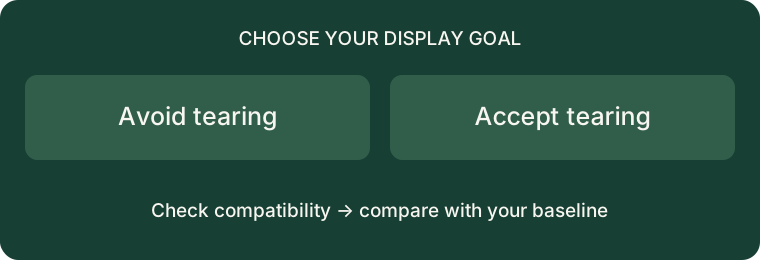
For a compatible G-SYNC setup where avoiding tearing matters, NVIDIA describes using G-SYNC with V-Sync and Reflex. If you accept tearing to prioritize latency, its guidance instead discusses V-Sync off with Reflex. These are different goals, not one universal preset for every PC.
The trade-off comes from NVIDIA’s system latency guide: the synchronized combination can limit frames below the display refresh rate, but NVIDIA notes slightly higher latency than uncapped rendering with Reflex. This article explains that choice; it does not present measurements from our own machine.
Choose a goal before a preset
Write one sentence describing the problem. “The image tears during turns” is a different observation from “my shots register late online.” Start with a local visual or responsiveness issue before adjusting display options. Keep network problems in a separate troubleshooting note; changing a display setting is not evidence that an internet connection improved.
For the tear-free branch, first establish whether your monitor and GPU actually support the relevant feature and whether it is enabled. For the latency-first branch, decide whether visible tearing is an acceptable compromise. If it is not, that branch does not meet your stated goal even when a frame-rate counter looks attractive.
Use the CS2 recommendation screen
Valve documents CS2’s own recommendation popup in Steam Support: Video Settings Recommendations. Its update notes describe a popup when G-SYNC is enabled without V-Sync and/or Reflex. Use the recommendation shown for your setup rather than transplanting a stranger’s driver profile.
Do not assume the popup will appear on every computer. An AMD system or a display without G-SYNC is outside the specific NVIDIA combination discussed here. Missing options are a reason to check supported features, not to install unofficial “unlock” tools.
Run a comparison you can undo
- Record your GPU, monitor, selected refresh rate and current synchronization settings.
- Save the baseline values before applying the game’s recommendation.
- Repeat the same short movement sequence in the same location, with the same resolution and graphics settings.
- Note separately whether tearing, visible stutter or perceived delay changed. If you have no latency measurement, label the last observation subjective.
- Restore the baseline if the result does not fit your goal.
This is our suggested comparison procedure, not a completed benchmark. Keep a small table with “baseline,” “change,” and “observed result.” A blank result is better than assigning a made-up millisecond improvement.
What about Reflex versus driver low-latency mode?
NVIDIA’s guide says in-game Reflex takes priority over its driver Ultra Low Latency mode when both are enabled. That is why stacking both switches should not be treated as proof of an additional improvement. Check the game’s own option first.
Do not copy an exact FPS cap blindly
A number from a setup with a different monitor does not explain your display’s refresh rate or your frame pacing. Record your own configuration before adopting a cap. We are not prescribing a universal cap or claiming a measured latency gain. If you are also changing mouse settings, finish this comparison first, then use the separate eDPI calculator so two adjustments do not become one confusing experiment.
Method: official documentation reviewed October 16, 2026; original explanation and comparison worksheet. No hardware benchmark claimed. Menu wording and recommendations can change with updates. Illustrations are original diagrams, not game screenshots.