Enshrouded · Sparkworks
Enshrouded Sparkworks Water Room: Stop Filling & Drain
On this page
The entrance lever controls its own door. Inside, the button connects to Toggle’s Upper input and the entry Trigger Area to Lower. Toggle feeds the exit, exit light and five drains directly; its inverted signal feeds the water dispensers. Pressing the inner button changes the room from filling to draining.
Find the entrance, inner button and exit
The water-room example has three separate interactions: a lever at the entrance, a detection area inside and a button that changes the room’s state. Locate them before connecting the water equipment. The entrance lever opens its own door; the inner button is the action that stops filling and opens the way onward.
Put the water controls into a room you can leave while testing. Check the entrance and exit from the dry side first, and keep a reachable way back while placing dispensers and drains. Once the wiring works, test the same sequence as a visitor: enter, trigger filling, reach the button, then leave through the exit.
Name the placed objects by function. Entrance lever, Entrance door, Fill trigger, Drain button and Exit door make the graph easier to read than several identical Object labels. Number each drain and dispenser as well. The official example uses five drains, allowing you to trace five individual outgoing lines from the main state node.
Keep the entrance lever on its own wire
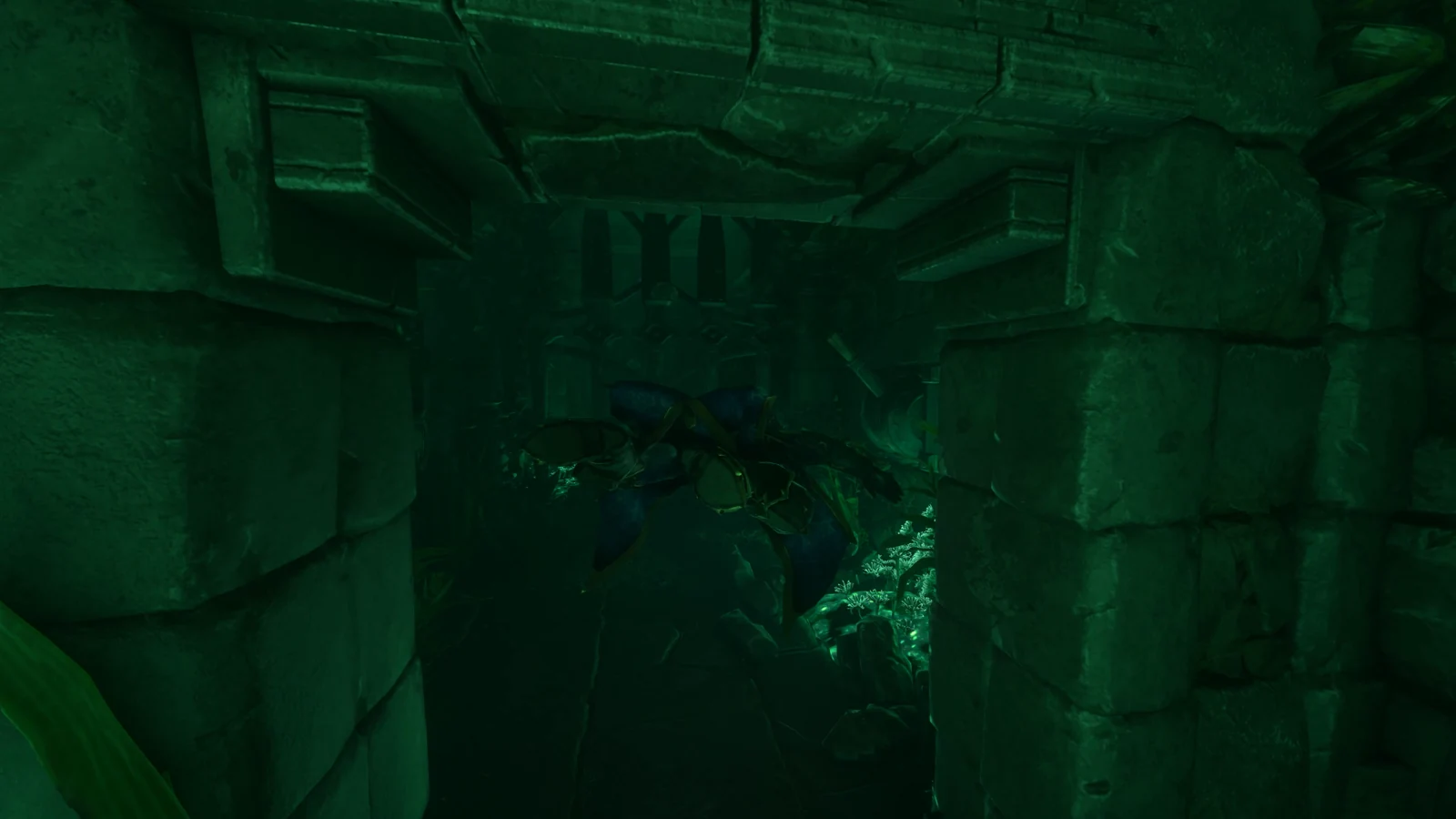
Connect the entrance lever directly to its door. In the example, the left-hand pair is 04_Lever → 04_Door_Switch. It sits apart from the central Toggle and the water equipment. Select the lever and the door individually to confirm that their assigned world objects match the doorway you intend to use.
Flip the lever and walk through once while the water branches are still easy to inspect. If the wrong door moves, correct the assigned door rather than changing Toggle. If the entrance behaves correctly but the room never starts filling, continue to the Trigger Area and state-node connections in the next section.
Separating this entrance wire also gives you a useful fault boundary. The lever can open the room while the fill/drain logic is still unfinished. When you return to make a correction, you can identify whether the failed action happened before entering or after crossing the room’s detection area.
Wire the reset trigger and the inner button
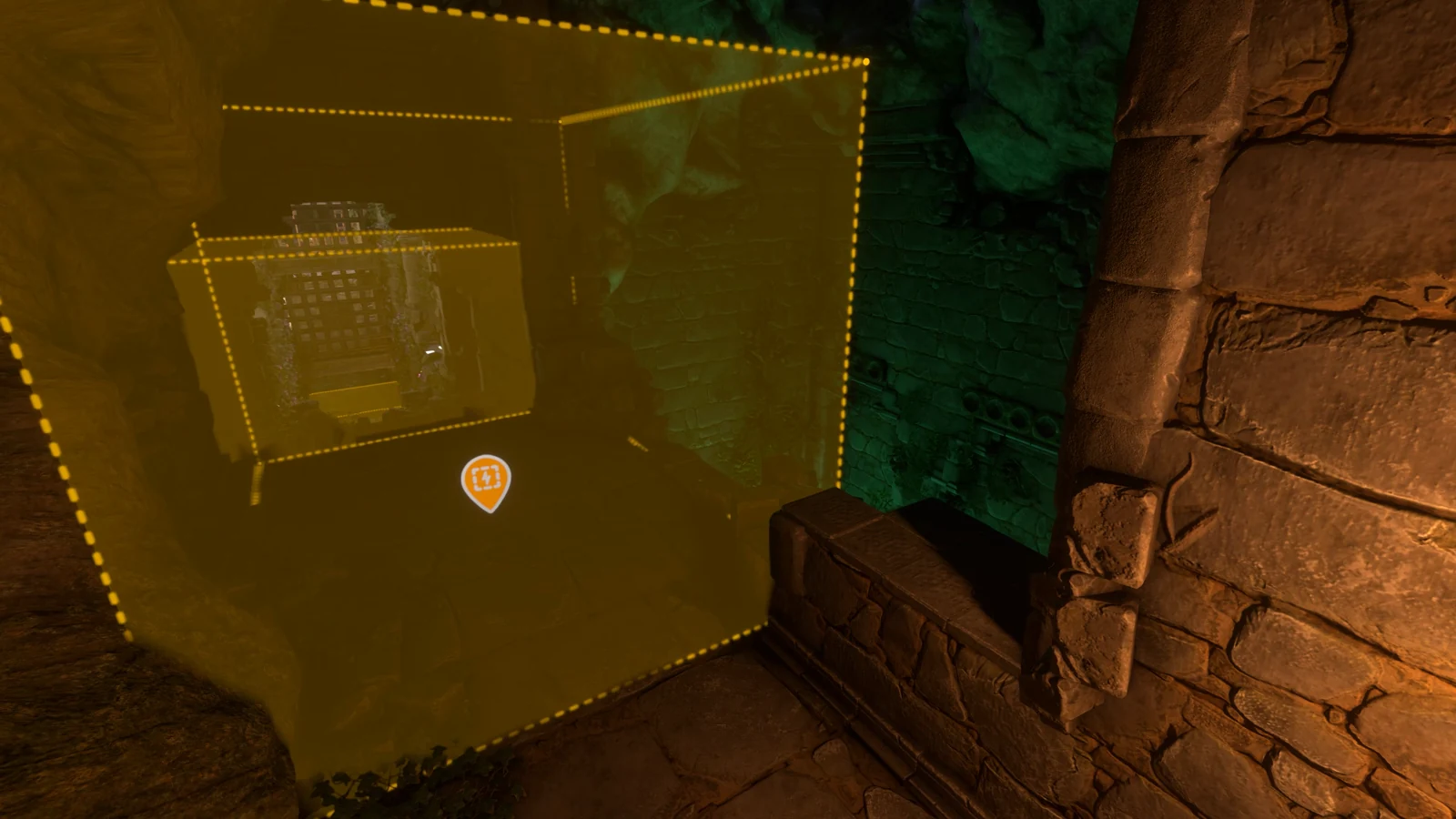
Add the inner Push Button and connect its output to Upper on Toggle. Connect the entry Trigger Area to Lower. These ports are labelled in the screenshot: the button reaches the upper square, while 04_Trigger_Dive_Start reaches the lower square.
Toggle’s upper input switches its stored state when activated. The lower input resets it to OFF. In this room, the entry area therefore provides the starting state, and the button changes that state when the player reaches it. Fit the entry volume to the beginning of the route so that reaching the inner button does not leave you standing in the reset area.
| World object | Graph destination | Role |
|---|---|---|
| Inner Push Button | Toggle Upper | Changes the stored state |
| Entry Trigger Area | Toggle Lower | Resets the room to its starting state |
| Entrance lever | Entrance door | Controls access independently |
With the tool equipped, inspect the detection volume from the entrance and from beside the button. If both places lie inside it, shorten or reposition the volume before continuing. A reset signal that remains active near the goal can make the successful button press difficult to observe.
Split filling from draining with NOT
Connect Toggle’s output directly to the exit door, the exit light and the five Water Drain nodes. Then run another branch through NOT to the Water Dispenser nodes. Both sets of equipment follow the same stored state, but the dispensers receive the opposite signal.
When Toggle is OFF, its direct branch is OFF and the inverted branch is ON: the fill equipment is supplied while the exit-and-drain branch is inactive. When Toggle becomes ON, the direct branch activates and the inverted one turns OFF. The exit opens, its light changes state and the drains receive their active signal.
| Toggle state | Exit, light and drains | Dispensers after NOT |
|---|---|---|
| OFF | OFF | ON |
| ON | ON | OFF |
Follow all five drain lines in the screenshot, then count the drains in your own room. One missing connection can leave water behavior different from the rest of the setup. Inspect dispenser assignments too: an inverted wire connected to a drain instead of a dispenser would put that object on the wrong phase.
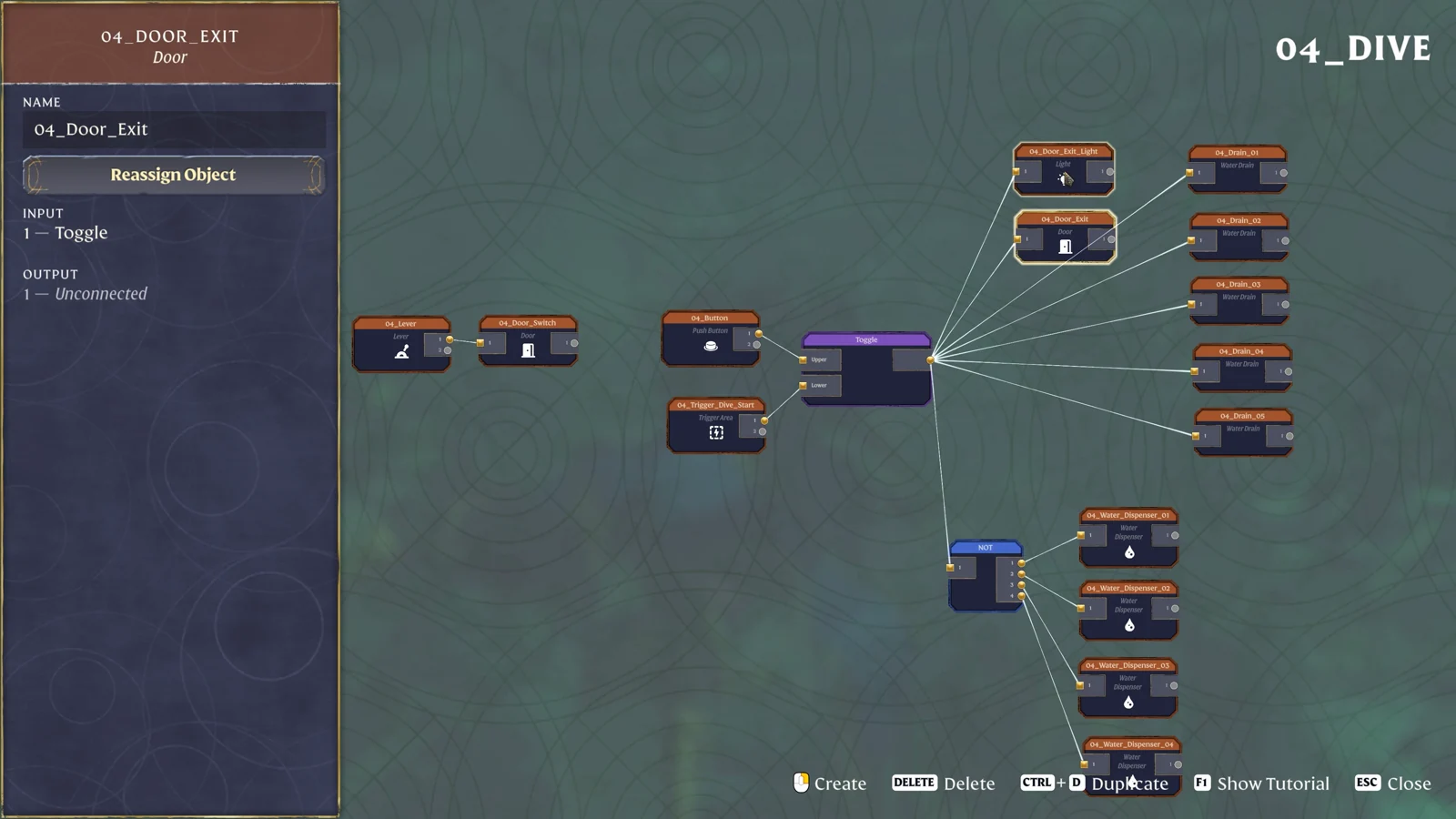
Check the direct and inverted branches without moving back into the entrance volume. Activate the inner button, inspect Toggle’s current output, and follow the two branches from that same state. The exit light should agree with the direct output; the dispenser inputs should show the opposite. If the state changes again before you touch the button, return to the reset Trigger Area and inspect what is still inside its detection volume.
After correcting a crossed wire, test the complete entry-to-button route again. A dry-room button test checks the state change, but crossing the entry area also exercises the reset connection that establishes the filling phase for the next visitor.
Run the complete room and check a failed reset
- Use the entrance lever and cross the entry detection area.
- Check that the room starts filling while the exit remains unavailable.
- Reach the inner button and activate it once.
- Watch the exit light and door, then observe the water level as the drains run.
- Return to the beginning and test another entry to check the reset.
Use the exit light as a quick indicator of the direct branch. If it changes but water keeps entering, inspect the NOT and dispenser wires. If the light and exit remain unchanged, start with the button’s object assignment and its Upper connection. If the button works until you move nearby, inspect the reset area’s size and position.
When the state changes correctly but draining is slow or incomplete, check the actual placement of the drains and the room’s water path. The graph tells you which equipment receives a signal; the physical room still determines where water can move. Inspect a drain’s surroundings before adding another timer to the circuit.
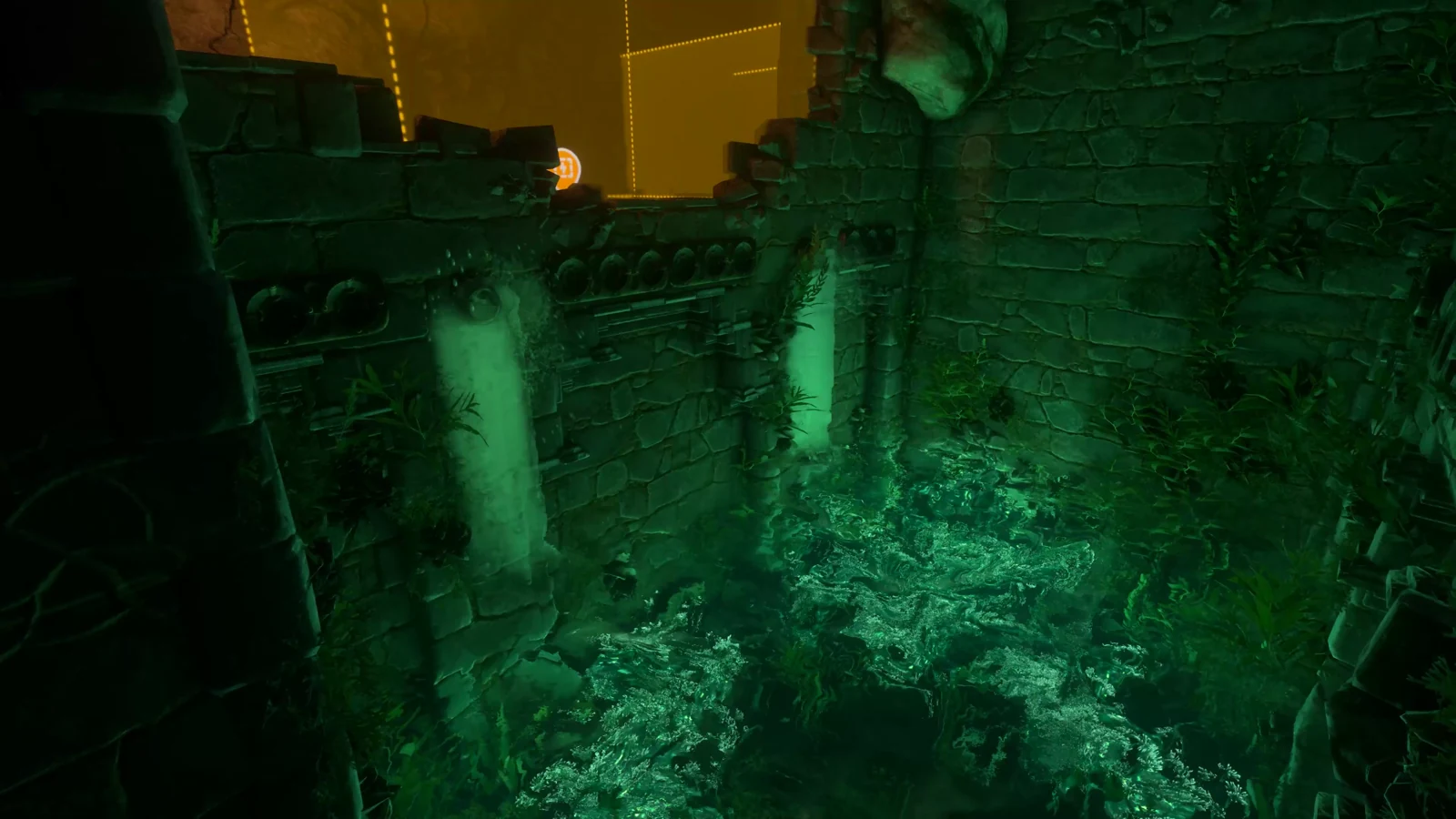
For a second room where one completed condition both opens an exit and shuts down a hazard, continue with the two-button lightning trap. Its successful state also divides into a direct exit branch and an inverted hazard branch.
Sources
Keen Games: Introducing Sparkworks · Official gameplay footage · Push Button · Metal Floor Drain I.