Enshrouded · Sparkworks
Enshrouded Sparkworks Lightning Trap: Hit Both Buttons
On this page
Activate both Shootable Buttons. Their outputs meet at AND, which opens the exits and lights. The same result passes through NOT to disable the lightning branch. Each arrow or spell hit toggles its target, so hitting an already active button again can undo the solution.
Locate both targets before shooting
The lightning-room example has two Shootable Buttons, two Lightning Traps and two exit doors. Find both targets before firing. One successful hit changes only that target’s state, while the exit requires both target signals together. Take a position where you can inspect the targets and the nearby hazard without standing directly in its path.
Bring a ranged weapon capable of activating the targets. A Shootable Button responds to an arrow or spell projectile. Its state changes with each hit, so aim deliberately and check the result after one shot. Repeatedly firing at the same button can switch it on and then back off before you inspect the exit.
If you are building the room, give the targets different object names before wiring: Button 1 and Button 2 are sufficient. Place them where a visitor can recognize two distinct goals. Name the two Lightning Traps separately as well, because the final hazard-control node sends its result to both of them.
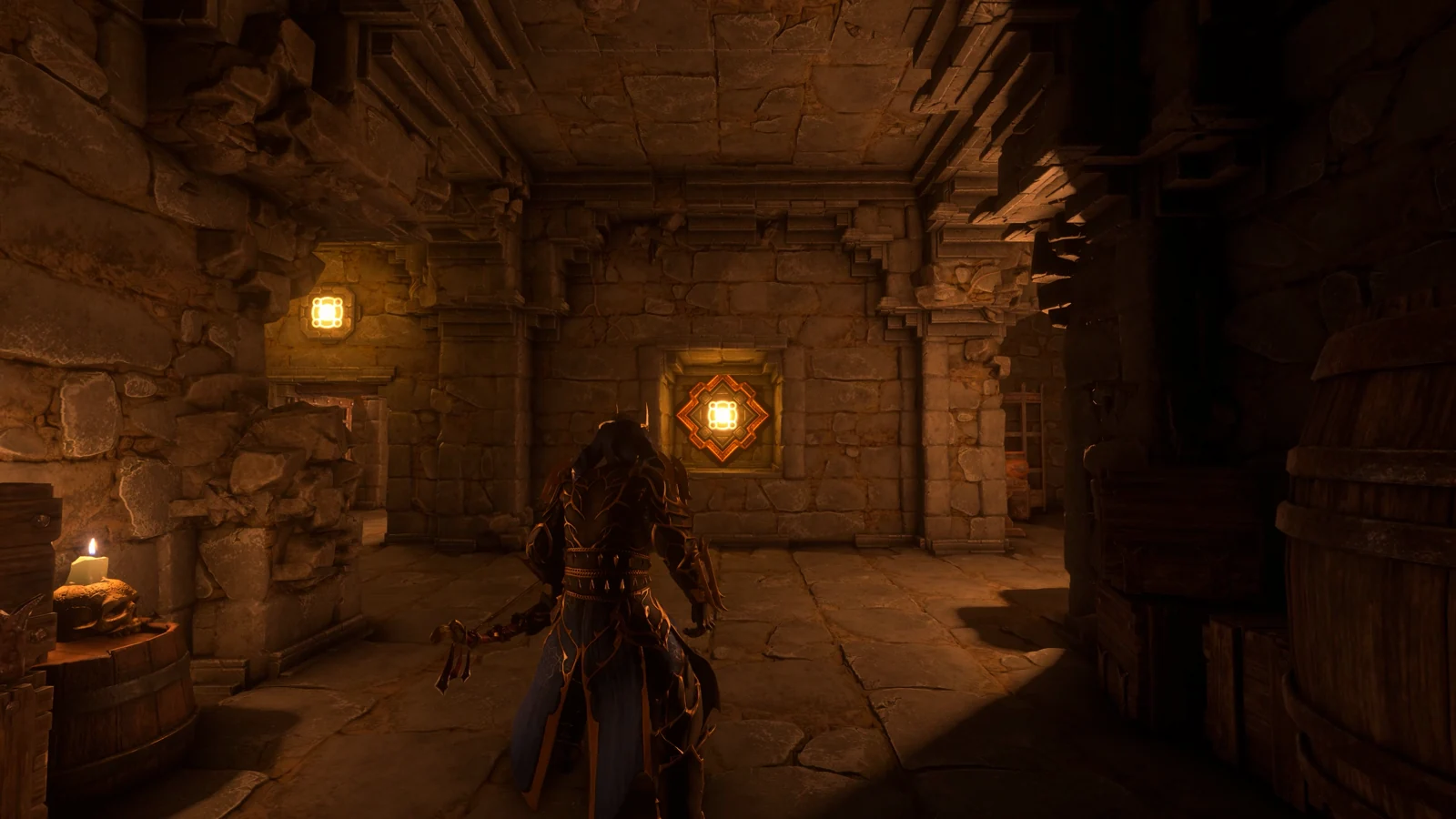
For the two targets and two traps alone, budget two Bronze Bars, two Copper Bars, two stone and four Archaic Essence: each Shootable Button uses one Bronze Bar, one stone and one essence; each Lightning Trap uses one Copper Bar and one essence. Craft these at the Sparkworks Workbench. Add your chosen doors, lights and building materials separately when planning the complete room.
Wire the target pair through AND
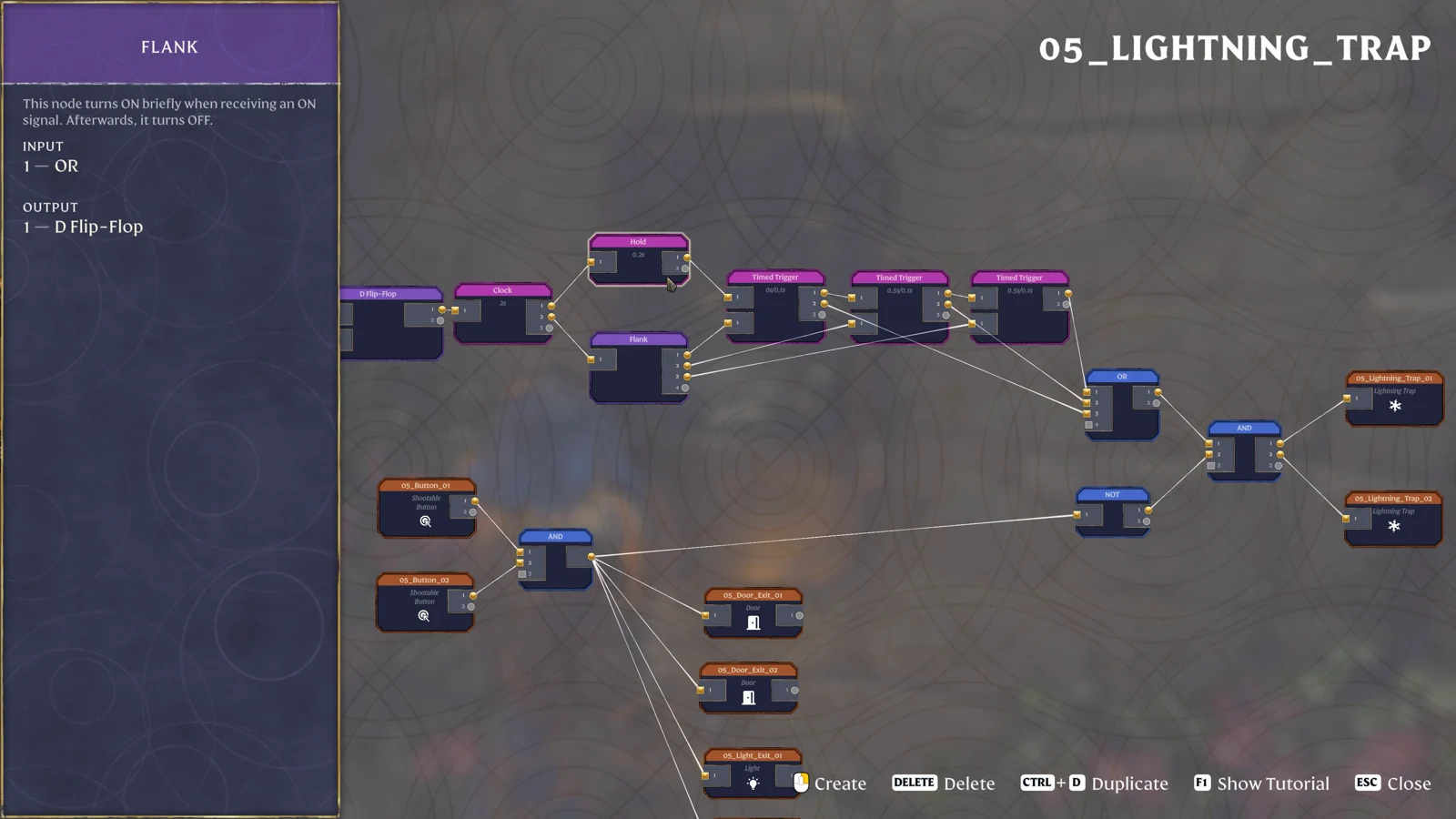
Add both Shootable Button world objects to the graph and connect each to its own input on an AND node. The pictured pair is 05_Button_01 and 05_Button_02. The wires converge at the lower AND, separate from the upper timing circuit that controls repeated lightning.
Use AND for this two-target goal. Its output becomes ON only while both incoming target signals are ON. An OR in this position would accept either target, changing the puzzle to a one-hit exit. If the door opens after only one target is active, inspect the node type and check whether another wire bypasses the intended condition.
| Button 1 | Button 2 | Completion AND | Next action |
|---|---|---|---|
| OFF | OFF | OFF | Activate each target once. |
| ON | OFF | OFF | Activate Button 2. |
| OFF | ON | OFF | Activate Button 1. |
| ON | ON | ON | Check the exits and hazard shutdown. |
For example, suppose Button 1 is already ON and Button 2 is OFF. Hitting Button 2 completes the pair. Hitting Button 1 first changes it to OFF, leaving you with another incomplete state even if you then activate Button 2. Read the individual target states before choosing the next shot.
Connect completion to the exits and hazard shutdown
Run the completion AND directly to the two exit doors and their lights. In the example, the door nodes are 05_Door_Exit_01 and 05_Door_Exit_02. Check each assigned door: two graph nodes attached to one physical door would leave the other exit unaffected when completion changes.
Take another output from completion AND into NOT. Connect that inverted result to the upper AND controlling the lightning traps. Before completion, this permit branch is ON and the timing branch can activate the hazards. Once both targets are ON, the permit turns OFF, so the hazard AND’s output turns OFF as well.
| Completion | Direct exit branch | Permit after NOT |
|---|---|---|
| OFF | Doors and lights inactive | ON: timing branch can reach the traps |
| ON | Doors and lights active | OFF: hazard AND blocks the trap signal |
Keep this NOT close to the completion node in your layout. It reverses the solved condition for the hazard branch. The upper AND then combines that permit with the timing signal, giving you two useful inspection points when the exit opens but the lightning continues.
Trace the pulse section separately from completion
The upper part of the example contains the repeated hazard timing: Clock branches, Hold, Flank, three Timed Trigger nodes and an OR before the hazard AND. Keep the completion test separate while inspecting these nodes. A trap that fires in bursts may be following its timing graph correctly even though the target shutdown wire is missing.
Read the selected node’s incoming and outgoing connections in the left panel. In the shown graph, Flank has outgoing lines to the Timed Trigger section, and the trigger outputs meet at OR. From there, the combined timing signal reaches one input on the hazard AND; the inverted completion result reaches another.
For an exit that will not open, begin at the target pair below rather than adjusting the Clock above. For an exit that opens while a trap stays active, inspect the completion NOT and the hazard AND. Only after those connections match should you investigate the repeated timing section and the two assigned Lightning Trap objects.
If you want to learn the timed nodes in a smaller graph first, use the spike hallway’s Hold and Clock example. It makes the alternating output visible with fewer connections, before you return to the lightning room’s multi-pulse section.
Test all four target states and both exits
- Inspect the graph with both targets OFF and identify the completion AND.
- Hit Button 1 once. Check its signal and confirm the second target remains OFF.
- Hit Button 2 once. Watch both doors and their indicator lights.
- Inspect the hazard AND after completion; the permit input after NOT should now be OFF.
- Test the alternate one-target state by changing one button, then restore both ON before using the exit.
Use those tests while you have access to the editor and a safe place to observe the room. They reveal a bypassed target, a mistaken OR, a missing inversion and an incorrectly assigned second door. Change one target at a time so that the resulting state is unambiguous.
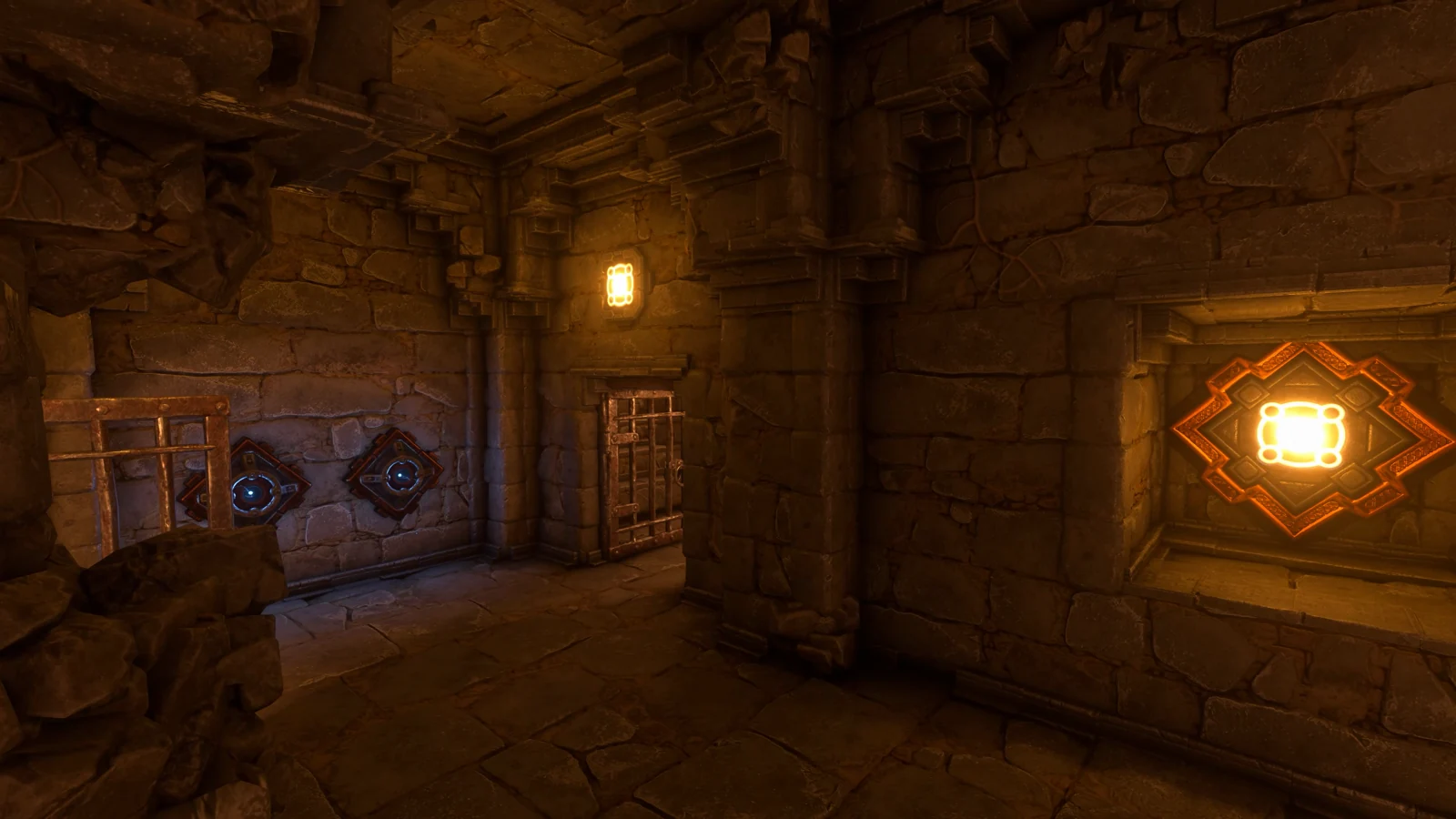
If a target appears unchanged after a shot, verify which object was hit and inspect its node before firing several more times. If the exits reopen and close again during repeated shots, stop firing and read the two button states. Restore the missing ON state with one deliberate hit, then observe the hazard shutdown.
For a similar direct-versus-inverted split using a single stored state, see the water room’s Toggle and NOT wiring. There, completion opens the exit and powers drains while the inverse turns the water supply off.
Sources
Keen Games: Introducing Sparkworks · Official gameplay footage · Shootable Button · Lightning Trap.