Transport Fever 3 · Practical network management
Make the vehicle use your corridor, not just visit your waypoint
On this page
Add the waypoint to the line between the two stops it should connect. Placing a marker on the map is not the same as putting it into the service. Inspect the selected segment and the updated route preview before sending more vehicles.
Published October 19, 2026 · Vanilla PC controls · Sources checked October 19
Read the line list and the map together
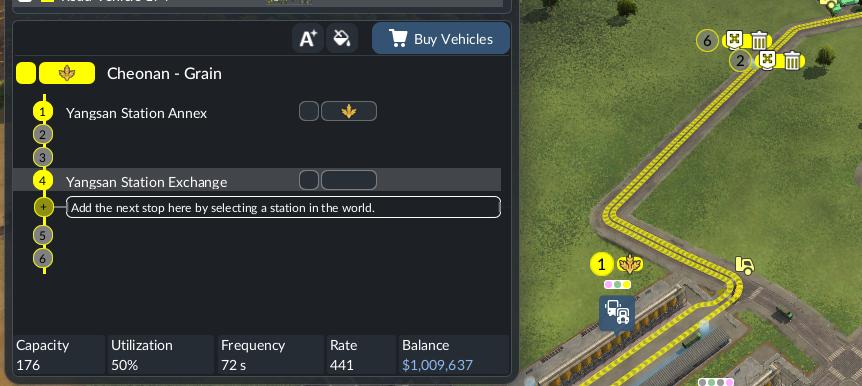
Open the line manager and select the affected service. Pick the stop or waypoint immediately before the section you want to change. A new entry is inserted after the selected row. The preview at the bottom is your check before committing the insertion.
On mouse and keyboard, hold Shift while clicking a valid location to add a waypoint. Make sure it appears in the list at the intended position. The vehicle must visit it, but does not stop there to load.
Write the intended order first
For a simple two-stop service, the outward instruction is A → waypoint → B. Put the marker after B instead and you have changed the return leg. This can explain why the service still takes the original outward road.
Inspect both legs after editing. A corridor suitable for one direction may not provide the return movement your line needs. If the game reports a connection error, identify the affected pair of entries rather than adding further markers around it.
Use one waypoint to prove the change
- Note the original route preview between A and B.
- Select A's row and add one waypoint on the intended corridor.
- Check its place in the list and the new preview.
- Watch one vehicle travel from A through that location to B.
If the preview still follows an unwanted section, check which part your waypoint actually constrains. A marker beyond two alternative approaches may leave both available until they meet. Place the instruction on the corridor you need, not merely close to the destination.
Remove unnecessary instructions
After rebuilding a junction or moving a stop, revisit old waypoints. A leftover detour can outlive the reason you added it. Remove one unneeded entry at a time and compare the preview before changing the rest of the service.
If the route is valid but vehicles queue at the station, use alternative-terminal checks; extra waypoints do not make an occupied platform free.
Sources
Adding stops and waypoints and routing behaviour, official manual. The inspection sequence and examples are editorial recommendations; no gameplay performance test or guaranteed gain is claimed.