Mycopunk · 1.0
Mycopunk Diffraction Driver: Unlock It and Use the Halo
On this page
Reach player level 10 and unlock the Diffraction Driver with resources. Hold alternate fire to spin its halo, narrow the firing cone and extend its reach.
Where to unlock the Diffraction Driver
Reach player level 10, then unlock the Diffraction Driver with resources. The purchase is a separate step after the level gate. If you have just crossed level 10, return to the HUB and inspect the weapon’s entry before choosing another mission; reaching the level alone leaves the resource purchase to finish.
Read the costs on your own unlock screen and compare them with the resource totals across the top of the inventory. Spend only after every required amount is available. The Driver belongs to the 1.0 weapon additions, so an older Early Access weapon list can send you looking for a mission reward that this gun does not require.
- Check the central player-level display in Gear.
- Find the Diffraction Driver in the weapon selection.
- Read its resource requirements and complete the unlock.
- Equip it, then inspect its upgrade grid before deploying.
Keep player progression and weapon progression separate here. A high-level weapon on a lower-level player does not satisfy a player-level gate. Conversely, a newly purchased Driver starts its own weapon progression even when your player has already passed the unlock threshold.
How the halo changes the firing cone
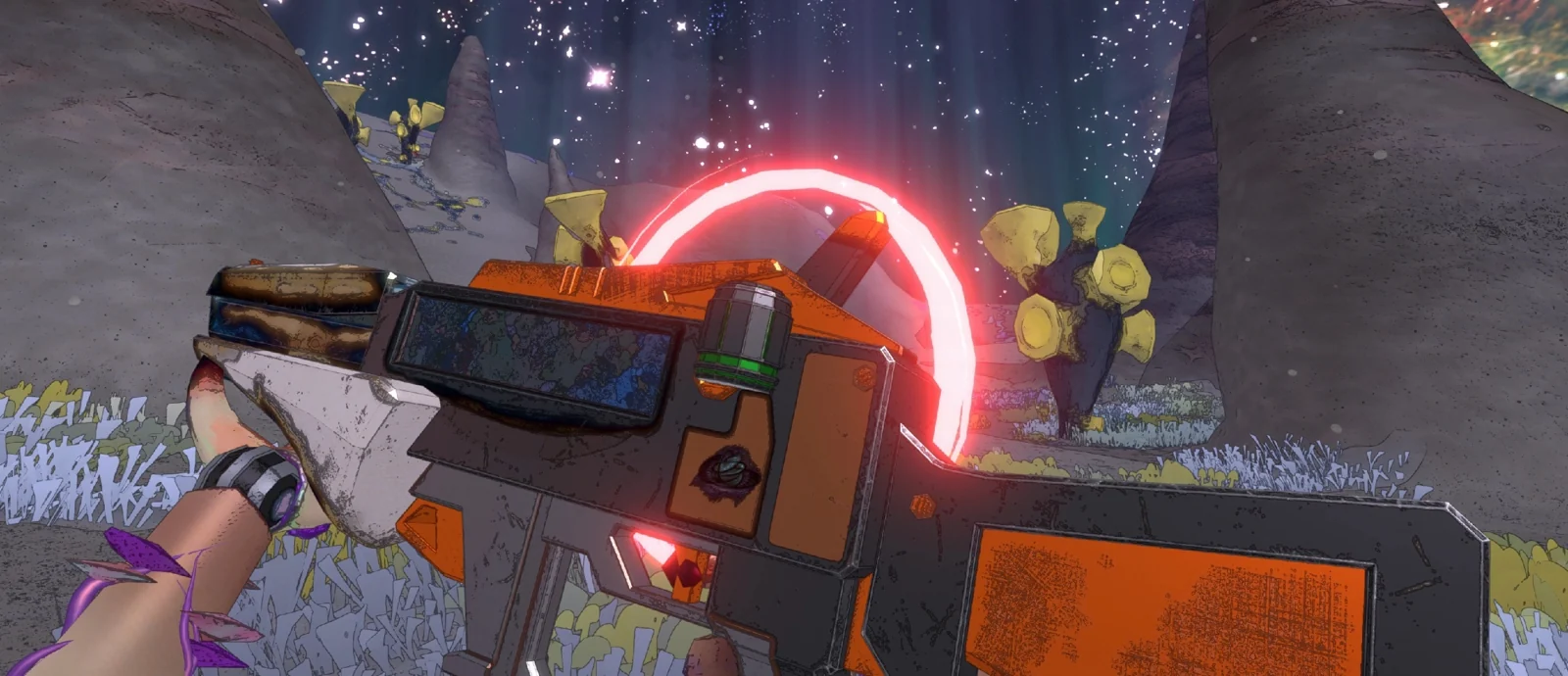
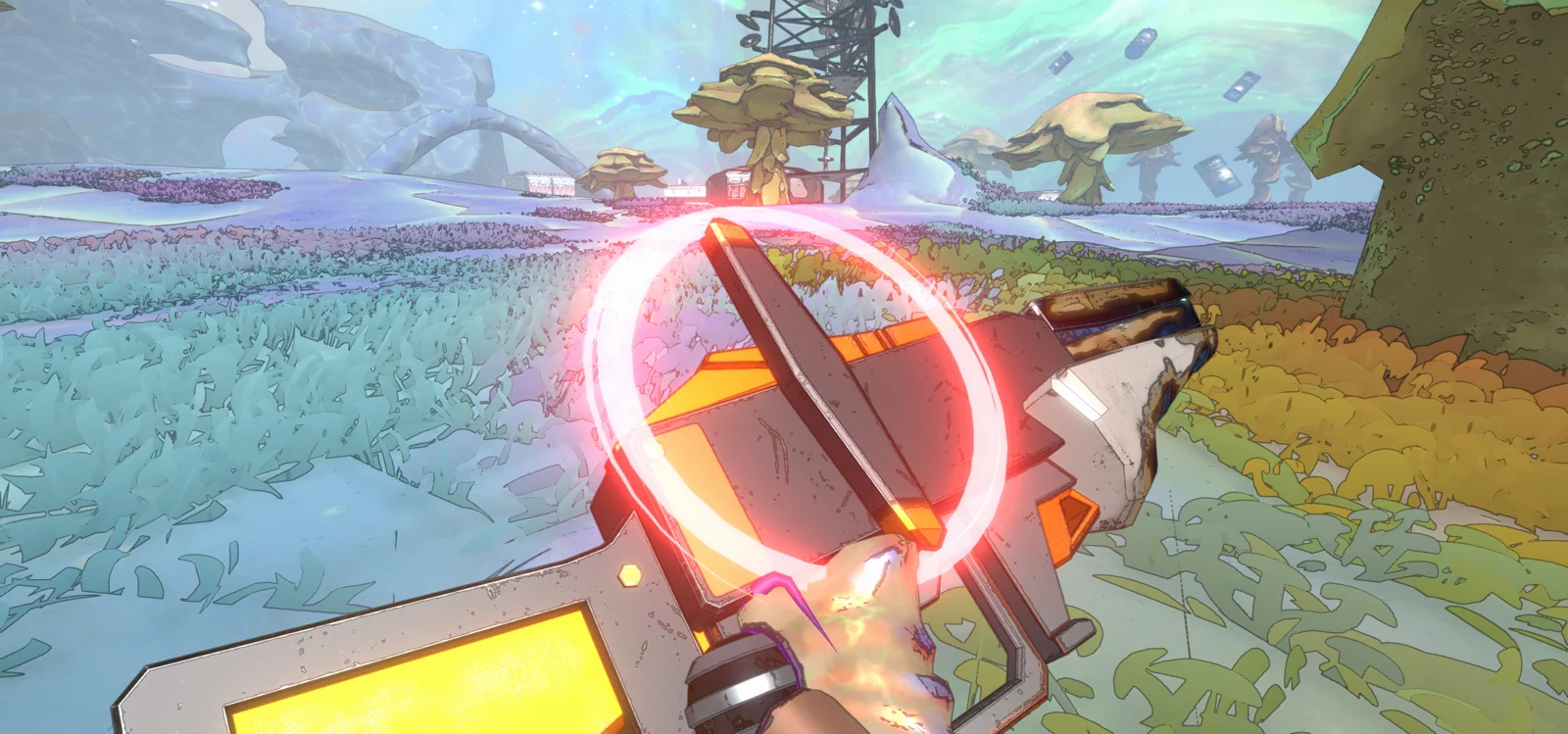
The basic Driver fires ions into a short, wide cone. Holding alternate fire spins up the halo, narrowing that cone and extending its reach. Start by watching the ring around the barrel while changing inputs: that visible movement helps you connect the weapon’s handling with the change in coverage.
Use normal fire when several enemies crowd the same nearby approach. A broad firing area gives you room to sweep between targets without holding the crosshair on a single narrow point. Move around the edge of the group so the enemies remain in front of you, rather than letting the pack surround the short-range weapon.
Hold alternate fire when an enemy is farther away or when you want a tighter area of fire. Give the halo time to spin as you line up the shot. The extra reach helps across a clearing, but the narrower cone also asks you to aim more carefully at the individual target.
| Situation | Input to try | What to watch |
|---|---|---|
| Nearby enemies spread across a doorway | Normal fire | Wide coverage across the approach |
| A target across open ground | Hold alternate fire, then fire | Spinning halo and tighter cone |
| Enemies close in during a distant engagement | Release alternate fire and reposition | Room to sweep the nearby group |
Test the two modes before spending upgrade resources
Take the newly unlocked gun into a mission whose threat level you already handle comfortably. Find an engagement with a clear approach and room to retreat. Fire at nearby enemies with the halo relaxed, then try holding alternate fire against targets farther along the same approach.
Keep the rest of the loadout unchanged for that first comparison. If you switch employee, replace both weapons and rearrange every upgrade at once, it becomes difficult to tell which change improved the fight. A familiar employee and second weapon let you concentrate on the Driver’s short-range coverage and focused reach.
Look for the point where normal fire stops reaching the enemy reliably. Move closer or spin the halo, then repeat from that position. This gives you a useful distance reference for your own loadout without relying on a fixed meter value that an upgrade can change.
Make the second weapon cover the distance or situation that gave you trouble during this test. If closing a long open lane cost too much health, retain a weapon you already trust there. If the Driver handled the lane but struggled while you were surrounded, put more attention into movement and escape space before buying a complicated upgrade combination.
Fit upgrades around the handling problem you actually have
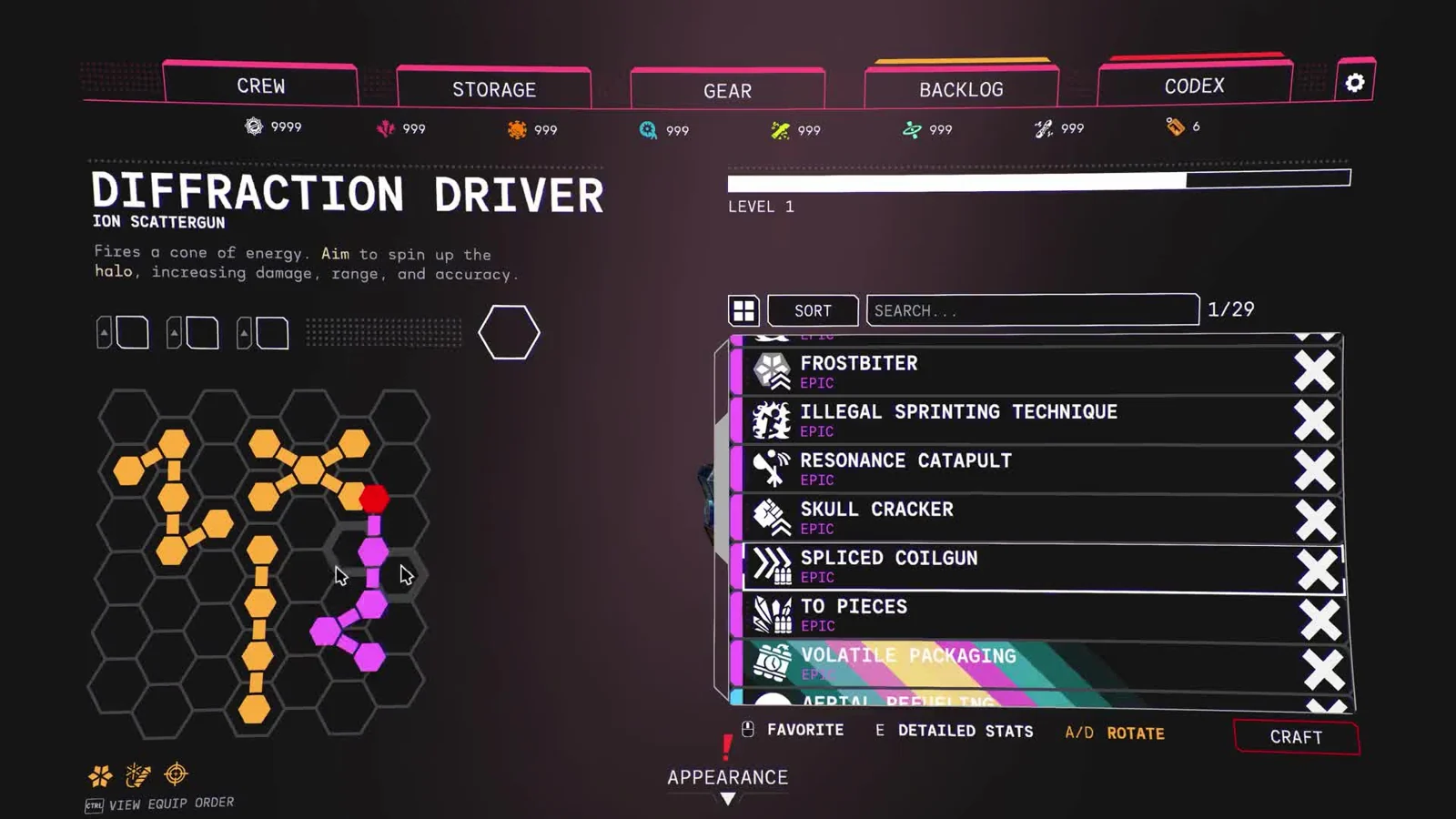
Open the Driver’s upgrade screen and read each available upgrade’s full description. Start with a change that addresses the problem from your test, then check the shape against the free cells on the board. Keep the first arrangement simple enough that you can identify which effect is helping.
In 1.0, fitting an upgrade into fewer cells can reduce most of its stats through Pattern Infusion. Before shrinking a useful upgrade to make room, compare the displayed stat changes with the extra effect you intend to add. Our Pattern Infusion comparison guide walks through that trade.
Hold CTRL on keyboard, or L3 on controller, in the upgrade screen to inspect application order. The icons below the board follow that order as well. When two equipped effects modify the same property, write down the final displayed result before moving anything; then change one effect and inspect the result again.
Also check the upgrade’s trigger. A condition tied to movement, a particular attack or another event belongs in the way you play the gun. If you rarely produce that event during the mission, rearranging the shape alone will not make the effect useful more often.
Keep enough board space to preserve the upgrade that gives the weapon its role in your loadout. A compact collection of bonuses can look appealing in the menu, yet still leave you without the particular effect you selected the Driver to use. Build outward from that effect, then use the remaining cells for supporting changes.
Why the unlock or halo may seem wrong
If the gun remains unavailable at level 10, inspect the purchase requirements first. The unlock consumes resources after the level requirement is met. Check the player-level display again if you were looking at an equipped weapon’s level, and verify that your installation includes the 1.0 update.
If the gun feels too short-ranged, hold alternate fire and watch for the spinning halo before repeating the shot. If targets are close but spread widely, release that input and use the broader cone instead. Switch between the two during a mission as the enemy distance changes.
Patch 2.0.3 reduced the sound of the spinning halo. A quieter spin after updating therefore has a documented explanation; use its movement and your firing behavior to check the mode. That patch also corrected some Pattern Infusion stat behavior, so update before comparing an infused upgrade with a launch-day example.
Once the weapon behaves as expected, try it in Population Control, where the shift from clearing a dense group to moving toward the next objective gives you a practical reason to alternate coverage and reach.
Sources
Pigeons at Play: 1.0 release notes · Patch 2.0.2 · Patch 2.0.3 · Developer weapon demonstration.