Planet Zoo 2 · Aviary construction
Build an aviary with enough flying space
On this page
Complete a habitat perimeter and one connected Staff Gate, apply the Roof Tool to that habitat, then add Roof Supports where more height is needed. A wide floor alone does not establish sufficient Flyable Area. Check the intended birds’ requirements before moving them in.
Published October 21, 2026 · English PC interface · Official instructions checked October 21
Plan for the species before placing birds
Read the bird’s Zoopedia entry for space, barriers and compatible items. For a mixed aviary, check every species; two birds do not necessarily share environmental or social requirements.
Preview needs before introducing animals: select the base habitat, open Animals → Pin Species, choose the species, use + Add to Selection and confirm. Keep this checklist visible while the enclosure is easy to change.
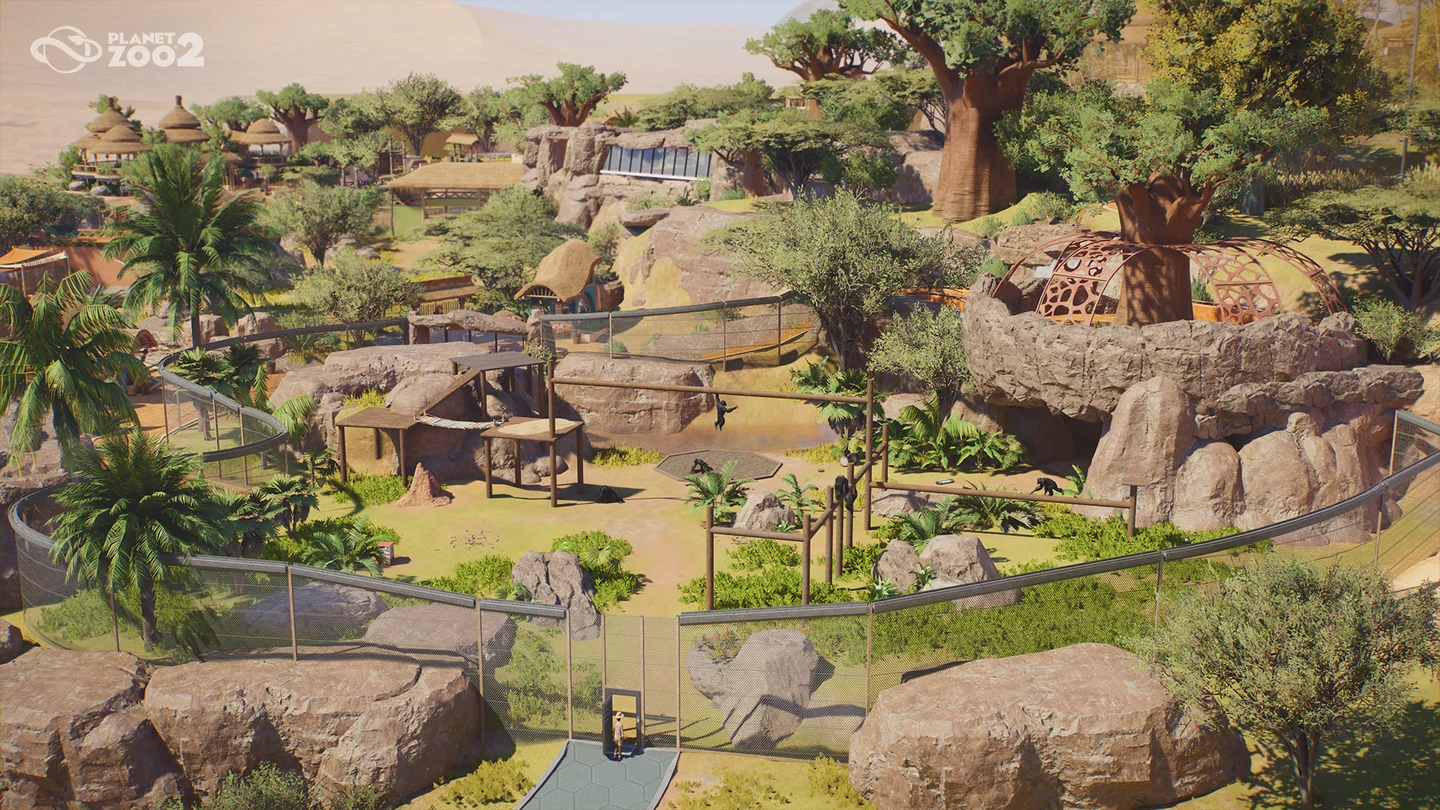
Build the enclosure, then generate the roof
- Open the Habitat Barrier tool and choose suitable settings, including resistance and climb protection where required.
- Draw one continuous perimeter with the Line or Curve tool.
- Add one Staff Gate and connect it to the path network. A merged habitat with multiple gates is invalid until extras are removed.
- Select the Roof Tool in Habitat Barriers, customise it and select the habitat to generate its roof.
- Place Roof Supports to raise the roof where more flying space is needed.
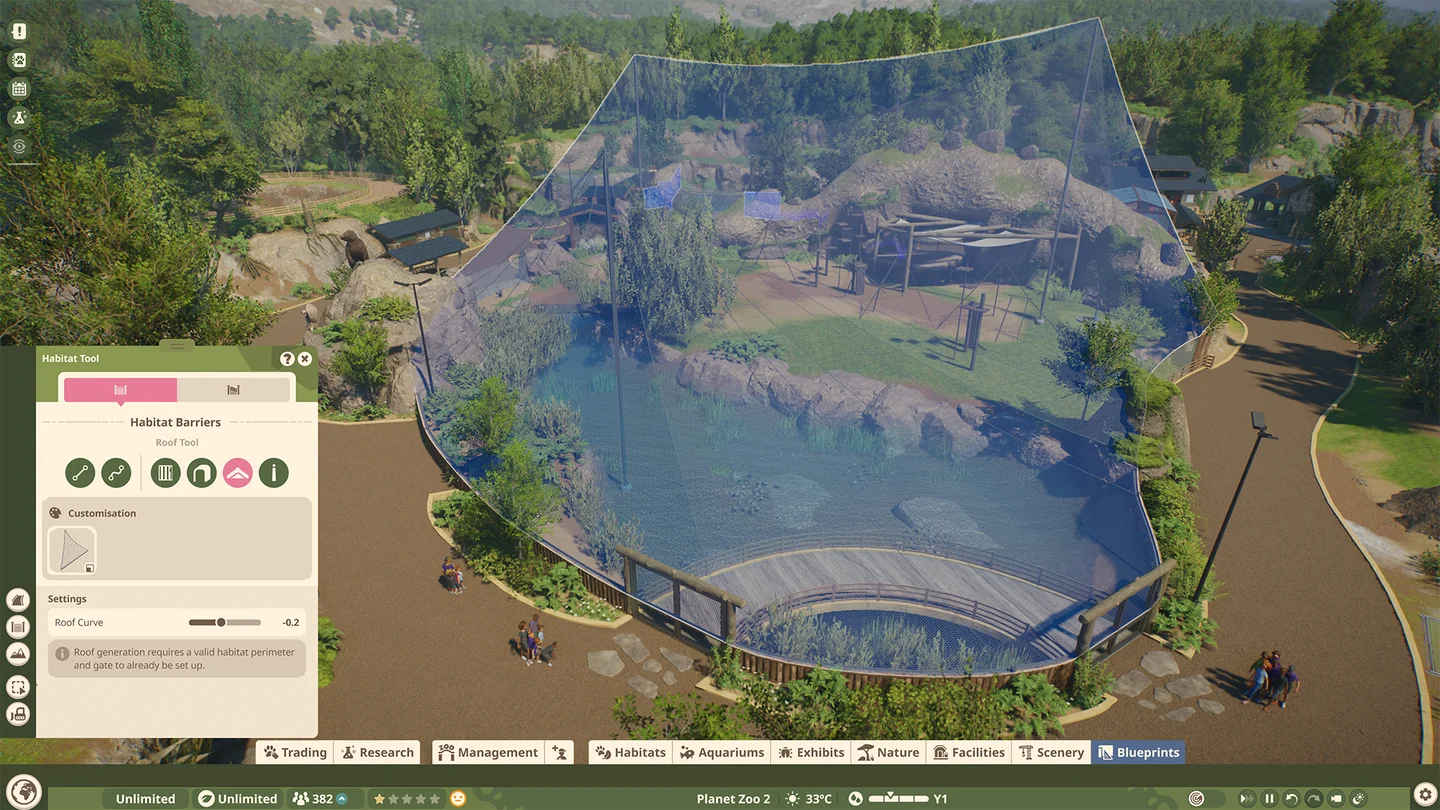
Read the space result after changing supports
Compare Flyable Area with the species’ requirement after an adjustment. If the floor is spacious but flying room is insufficient, examine vertical space before extending the whole perimeter. Frontier specifically describes Roof Supports as a way to increase flying space.
Do not copy a universal support count or roof height from another zoo. Compare the same habitat before and after one change, checking the resulting requirement rather than only its appearance.
Finish care and nesting requirements
Add compatible feeders, enrichment and nests from the Habitat browser. Check terrain, plants, temperature and access as well as roofing. Egg-laying pairs need the right accessible nest; a higher roof does not fix a nest-type mismatch.
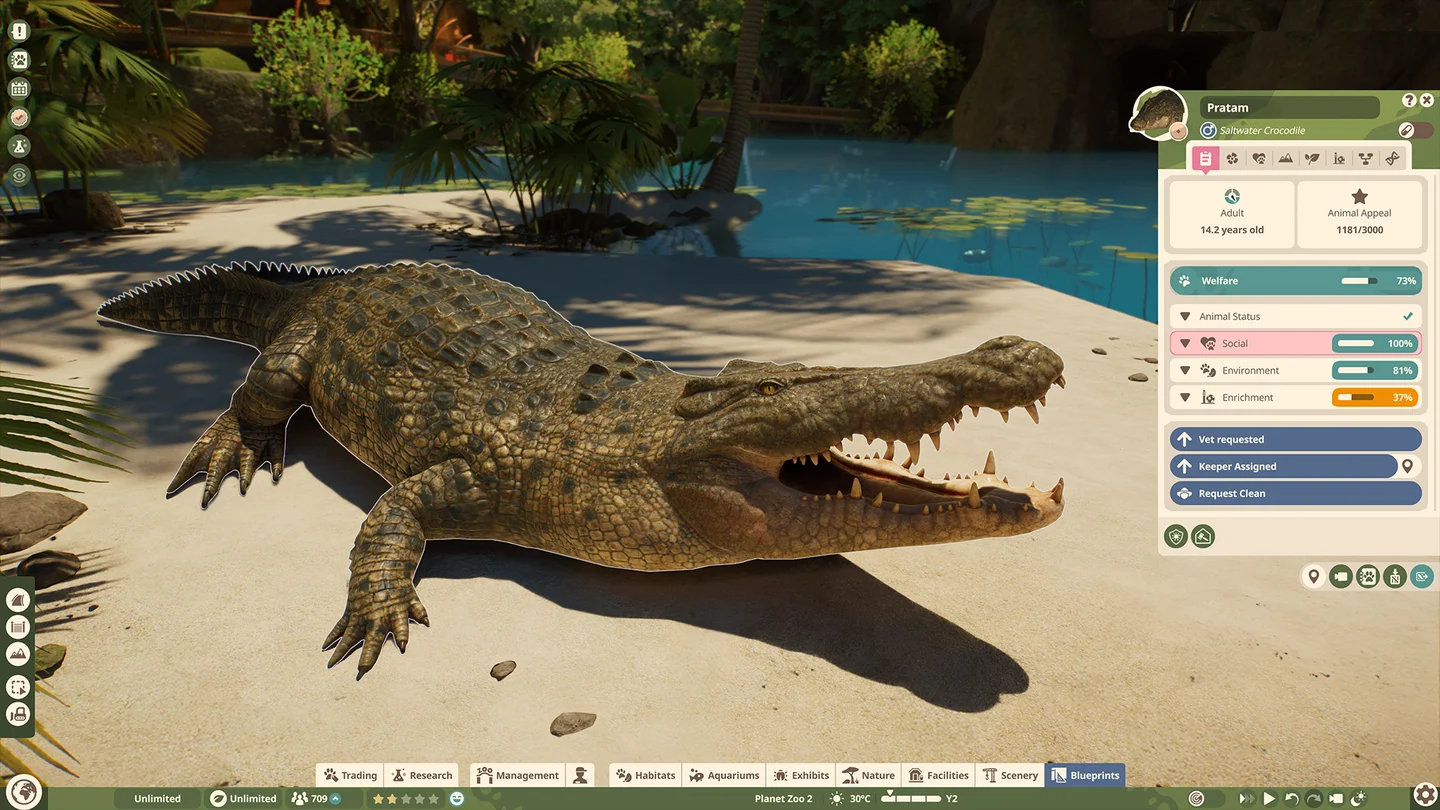
The completion check is a roofed, serviceable home meeting the chosen birds’ needs. If placement is blocked, inspect the continuous perimeter and single gate before rebuilding the roof repeatedly.
For birds still in storage, see the transport checklist. For reproduction, use the breeding checks.
Sources and version
Habitat roofing and aviary construction; Nesting requirements. Checked against Frontier’s Planet Zoo 2 guides, not the first game. Screenshots are publisher examples, not our own playthrough. The diagnostic order is an editorial suggestion; check species-specific requirements in your current Zoopedia.