Enshrouded · Sparkworks
Enshrouded Sparkworks Switchbox: Create & Edit Graphs
On this page
Equip the Sparkworks Tool and open Sparkworks Graphs. Create a graph, add World Object nodes for the placed devices, then connect the trigger’s output to the receiving object’s input. If the wrong device responds, select its node and use Reassign Object. The screenshots below show the graph list, object picker and assignment panel.
Have the tool, Switchbox and placed devices ready
Start with the Sparkworks Tool in your backpack and a Sparkworks Switchbox ready to place. Keep the devices you want to connect nearby: for a small lighting test, use one Lever and one Light. Place both where you can see them from the same spot. That lets you check a switch without walking between rooms after every change.
The Sparkworks Workbench crafts the components; the graph editor connects objects after placement. At the workbench, find the Switchbox under Essentials. Its recipe uses one Copper Bar and one Any Archaic Essence. The recipe panel offers alternative Essence materials, so check the required count beside the option you select before crafting.
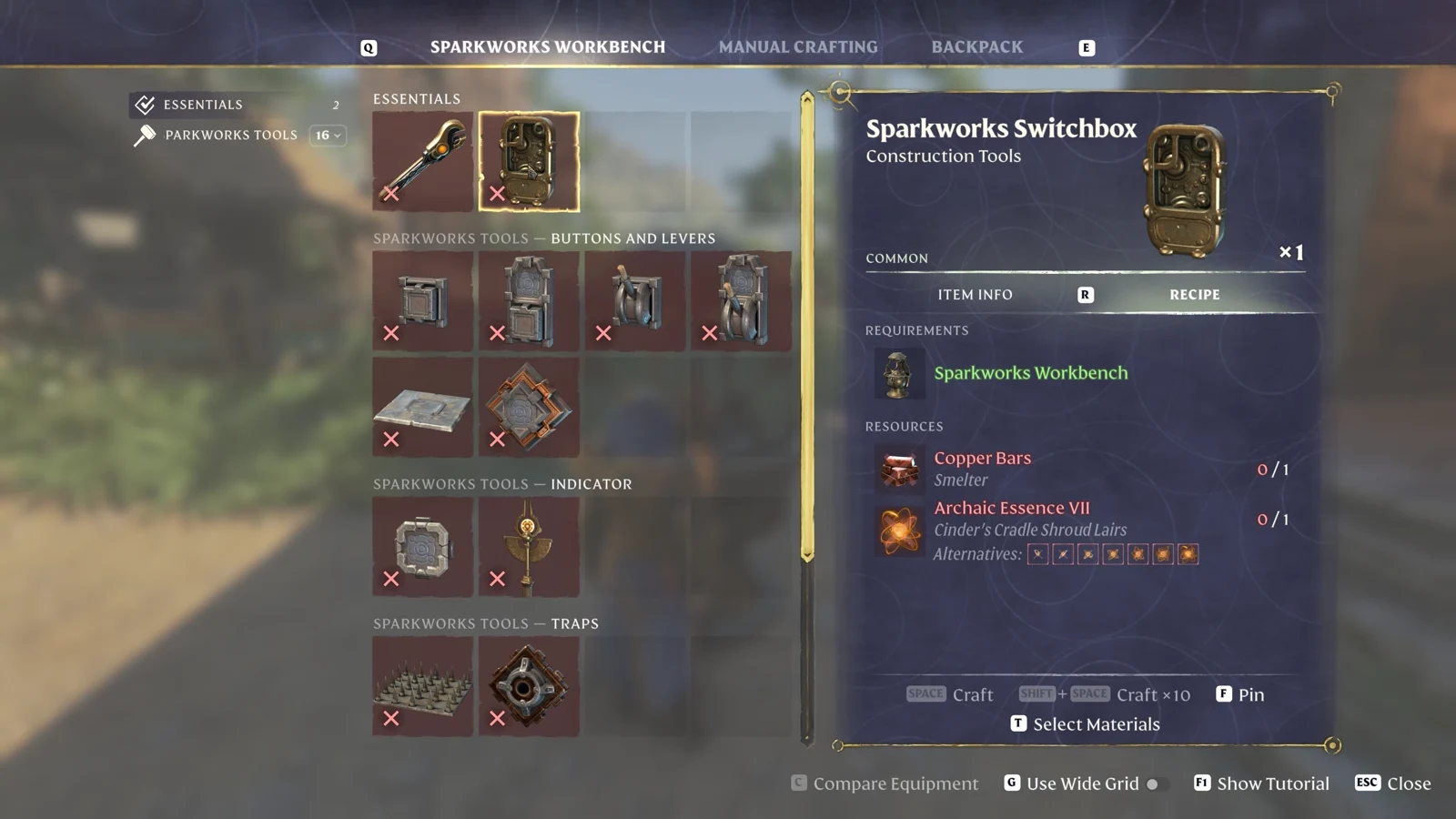
For the optional one-light test, a Lever costs one Metal Scrap and a Light costs one Metal Scrap plus one Any Archaic Essence. Together with the Switchbox, that is two Metal Scraps, one Copper Bar and two Essence recipe units. This total covers those three components; your existing workbench and tool are separate.
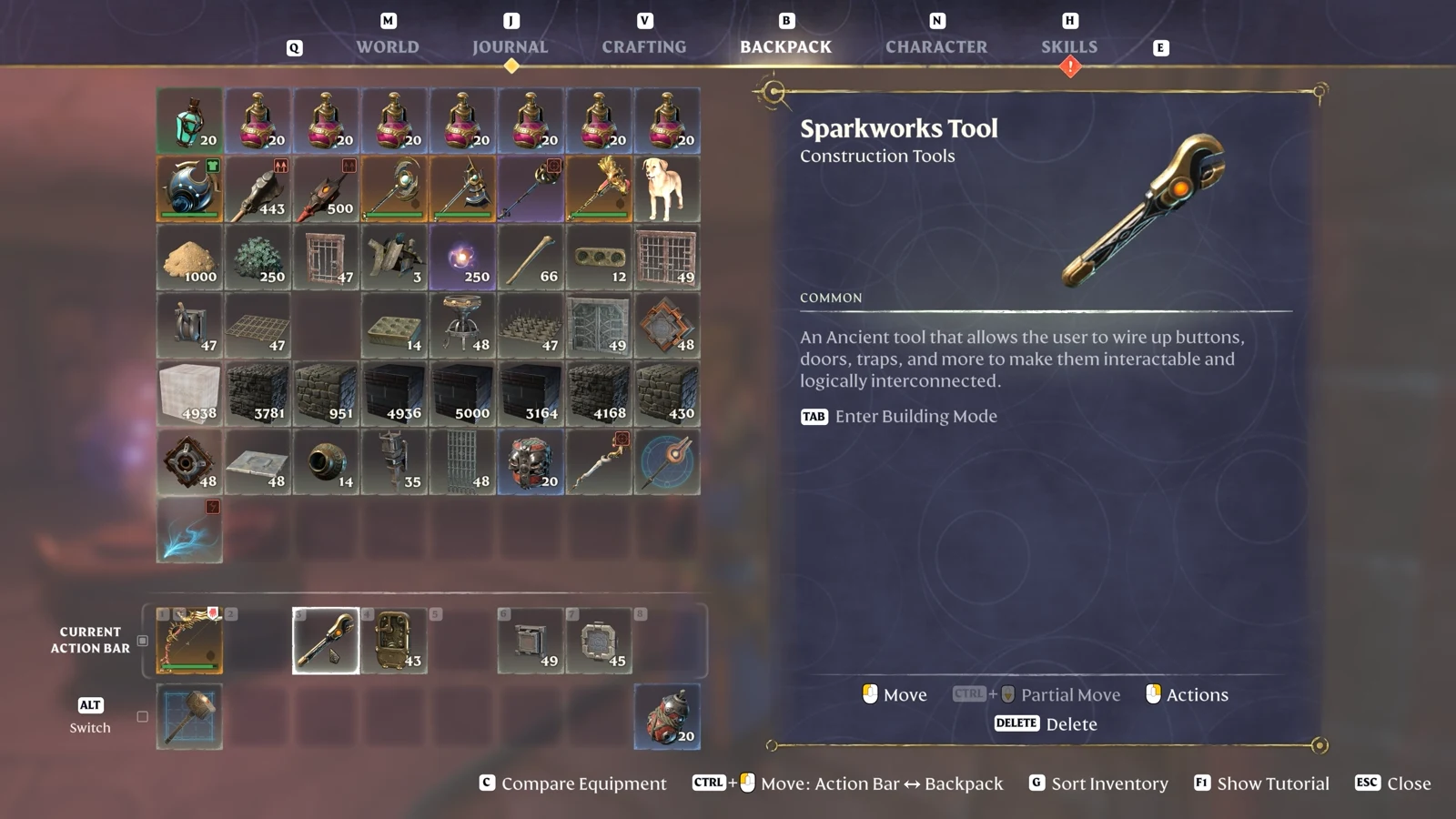
Equip the tool from your action bar before looking for the graph controls. In the inventory screenshot, its name appears as Sparkworks Tool under Construction Tools. Check that name if you have several building items beside each other on the bar. The tool, the Switchbox and the workbench each have a different job in this setup.
Open Sparkworks Graphs and create a named graph
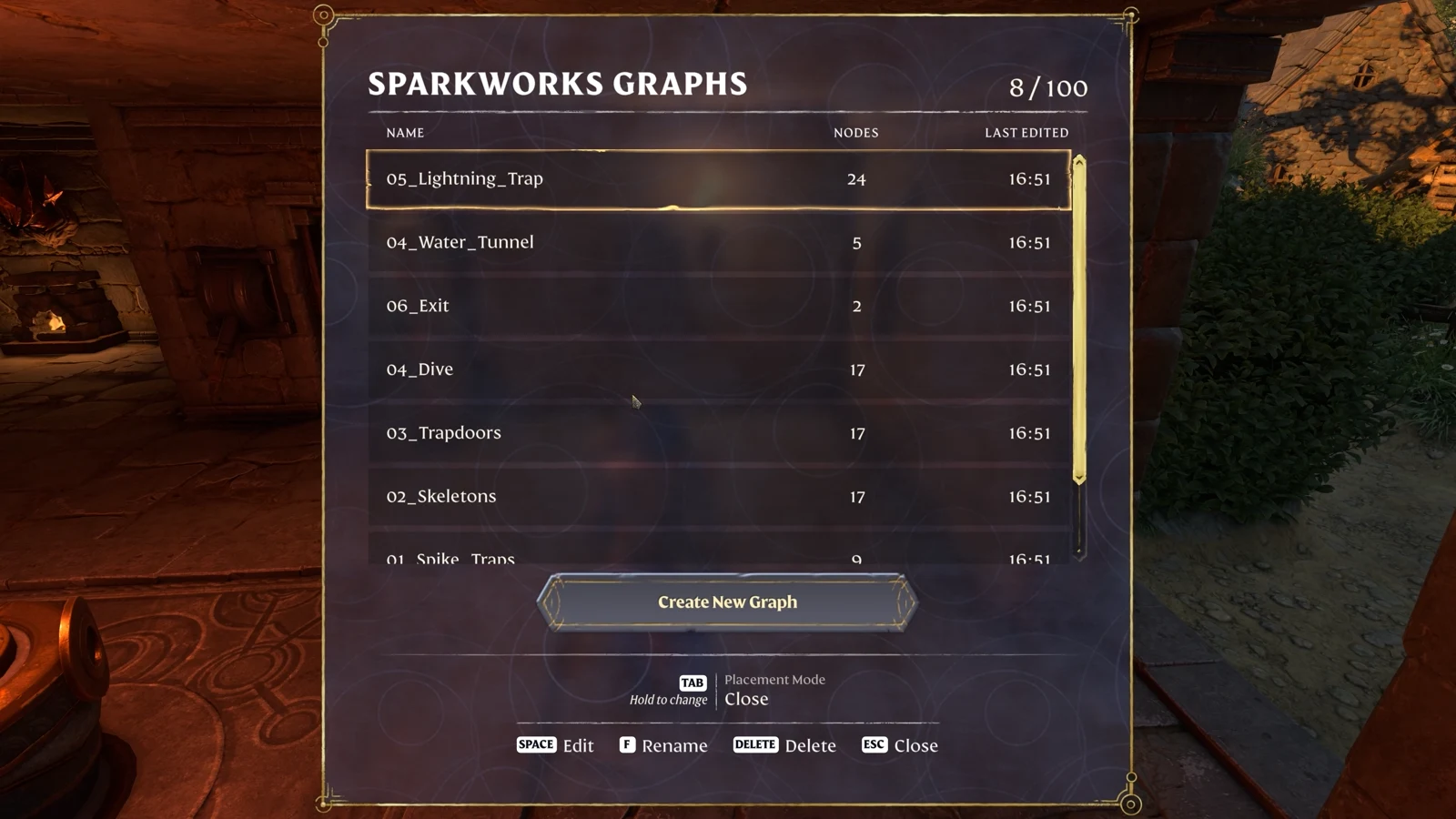
With the tool equipped, read the mode hint at the bottom of the screen. The demonstrated keyboard layout uses Tab to change modes and a hold action to open Sparkworks Graphs. Follow the hint shown beside your own bindings, especially when using a controller or a remapped keyboard. Open the graph list before adding nodes.
The list shows existing graph names, their node counts and their last edit times. Select Create New Graph for a new mechanism. Give it a name that identifies the room and purpose, such as Workshop Light. When returning to an existing build, select its named row and use Edit instead; creating another empty graph leaves the earlier wiring elsewhere in the list.
After entering the editor, check the graph name at the upper right. The left panel lists World Objects, Time Nodes, Logic Operators and Saving States. For a direct switch-to-light connection, start with World Objects. Leave the timing and state categories alone until the input and output objects are assigned.
Use Rename Graph if the new entry still has a generic numbered name. Switch Graph returns you to another mechanism without having to identify it from its shape. This becomes useful when a base has separate lighting, door and trap circuits: a descriptive name gets you back to the intended wires immediately.
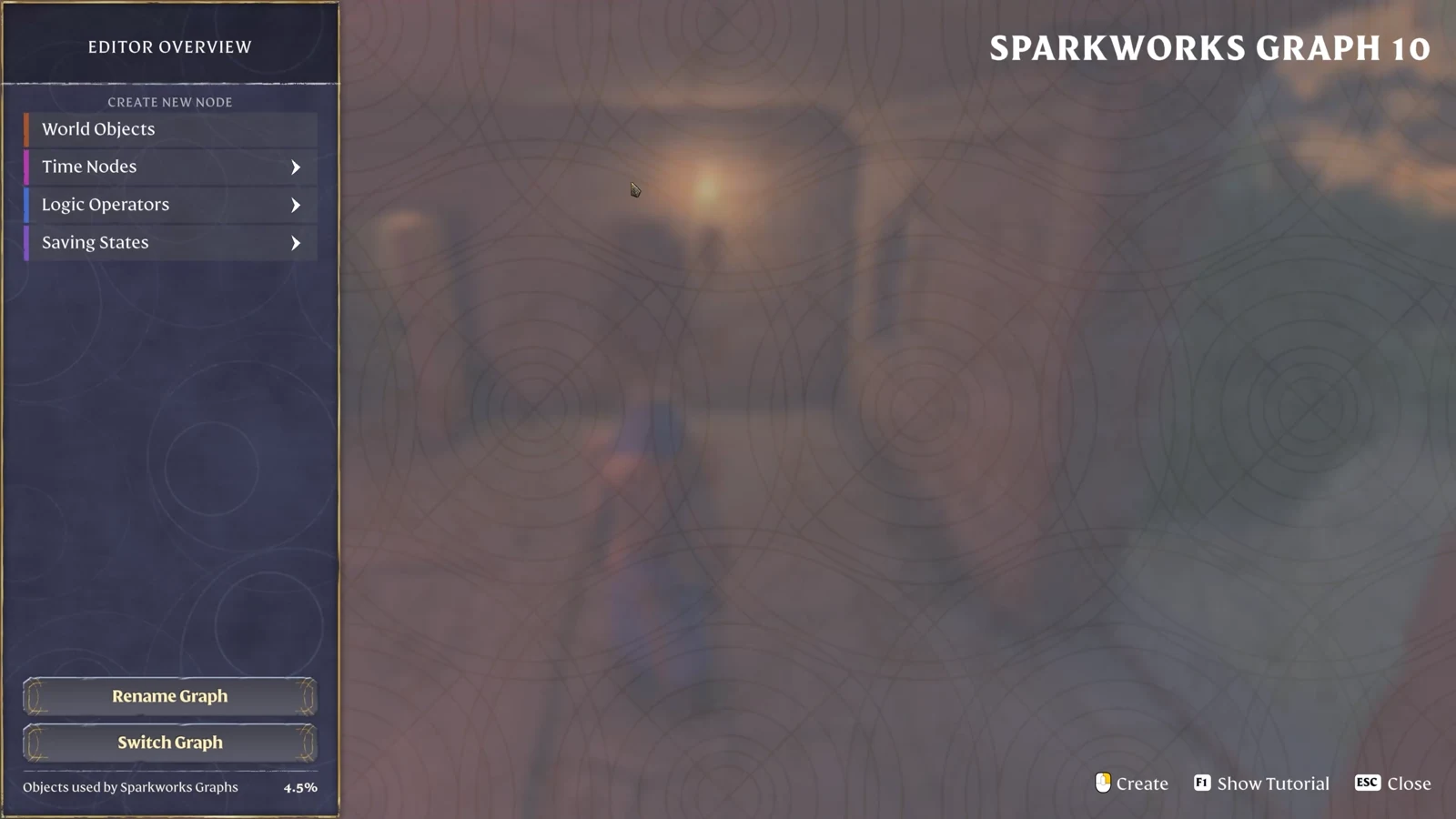
Select World Objects and check each assignment
Add a World Object node, then choose the placed device from Select World Object. The picker has a search field and a category filter above the list. Its rows show both an object name and its type. Read the type in parentheses when several nearby props have similar names.
For the lighting test, assign the first node to the placed Lever and add a second for the placed Light. Arrange the trigger on the left and the receiver on the right. Keep enough space between them to follow the connection. For a larger room, identify each physical device before drawing several branches across the canvas.
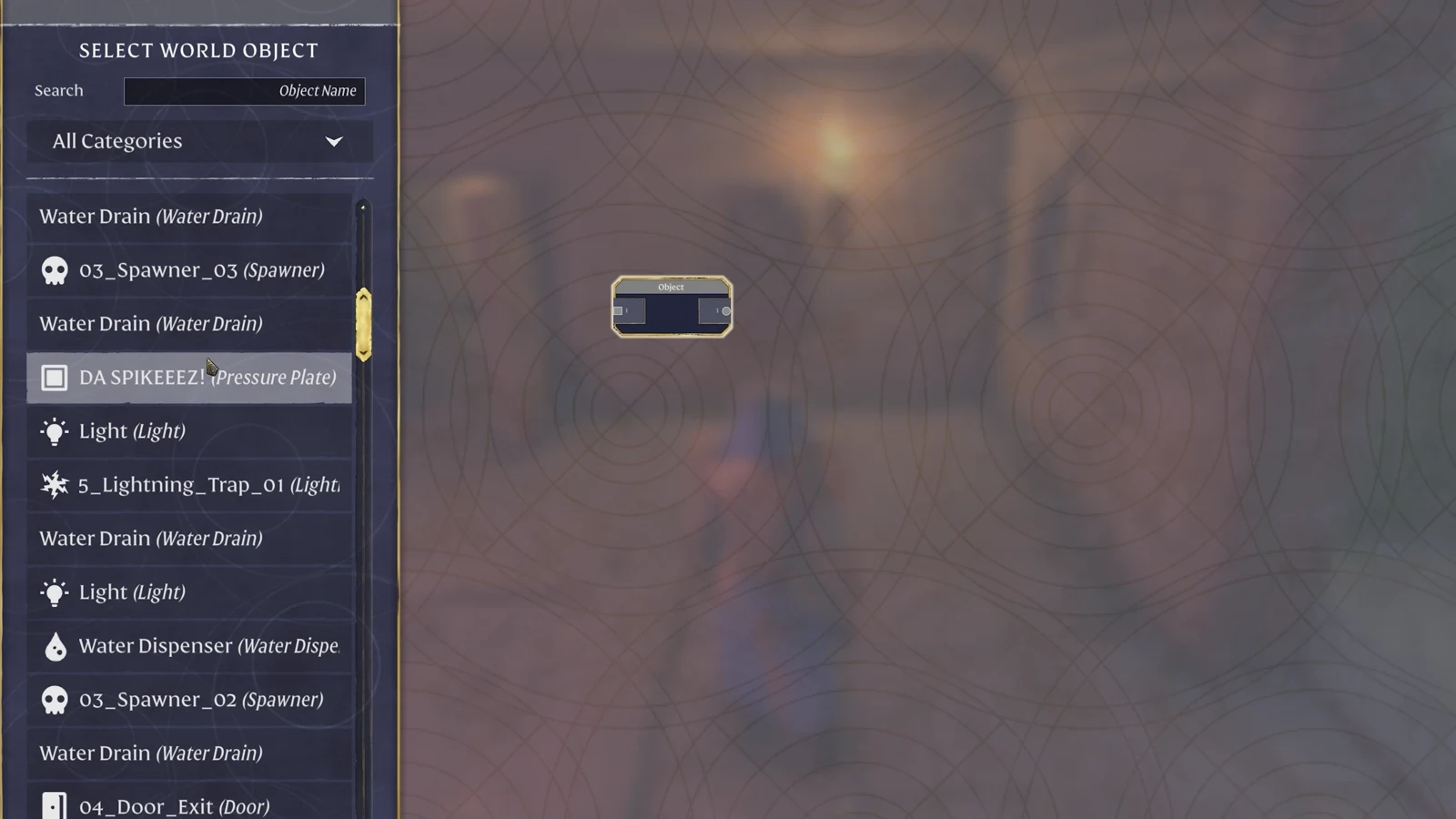
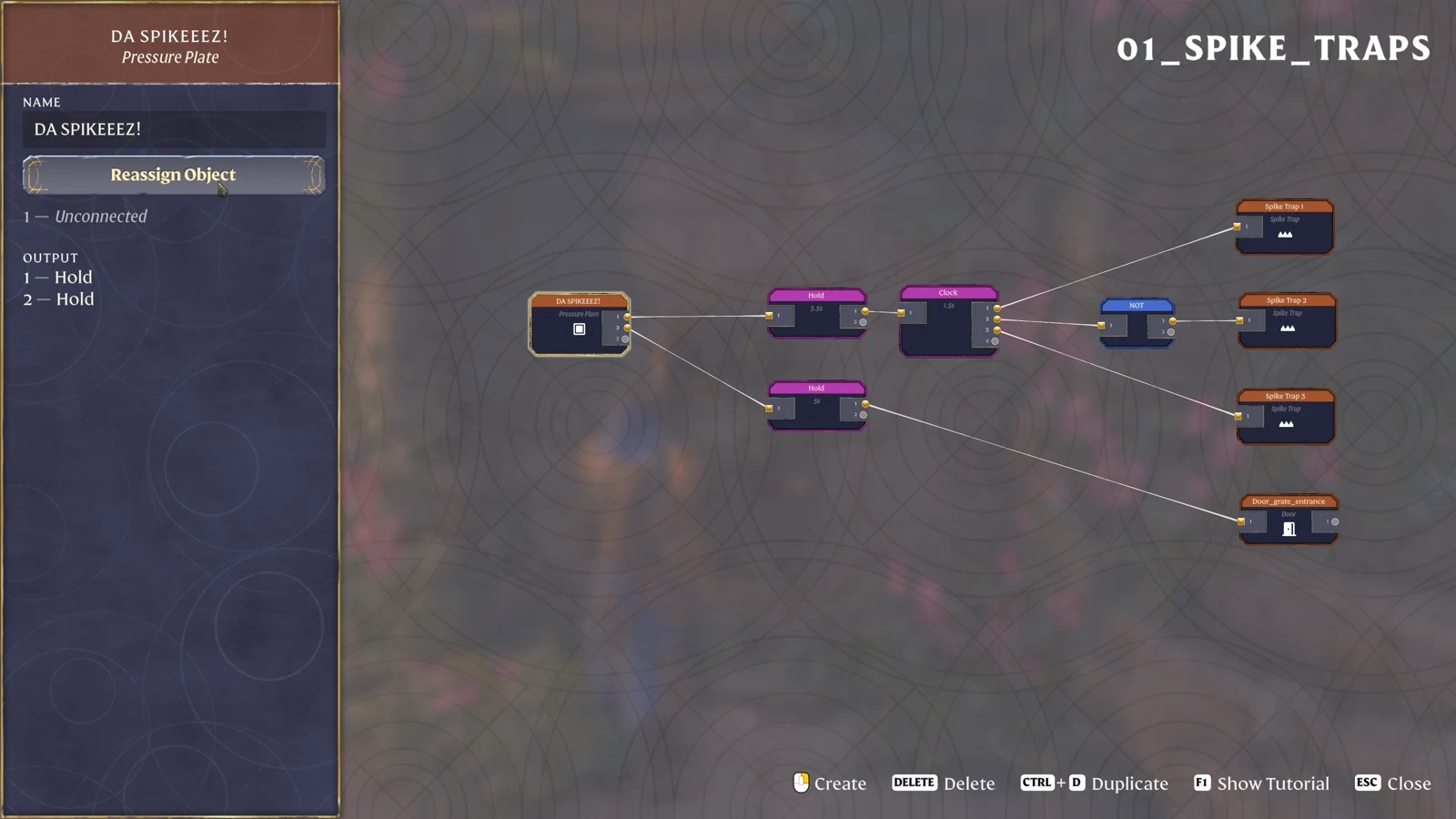
Select each completed node and inspect its left-hand panel. Check the displayed name and object type against the device you meant to use. In the illustrated trap graph, the selected object is a Pressure Plate named DA SPIKEEEZ!; the three trap nodes sit on the right. Those custom names describe that build, so your own entries can look different.
If a node points to the wrong item, choose Reassign Object in that panel and select the correct placed device. Repeat the check for every repeated trap, door or light in the room. Two similarly named lights are easy to mix up when one is behind a wall; confirm the assignment before changing the graph’s logic.
Connect the output, then test both switch states
Run the trigger’s output connector to the receiving object’s input. For the direct lighting test, connect Lever → Light. The lever provides an ON/OFF state, and the light receives it. Start with this single connection so that every switch action has one visible result.
Close the editor, operate the placed lever and watch the light. Operate the lever again and check the opposite state. Return to the graph if either action affects a different object. Once the first light follows both states, add another Light node and connect a second branch from the same lever output.
The screenshot below shows branching in a more elaborate circuit: one pressure-plate output feeds two Hold nodes. Use it to locate the source connector and separate outgoing wires. For the complete timed layout and its values, continue with the Sparkworks spike-trap hallway.
Keep a safe route around any trap while checking a graph. Test a light or an accessible door first, then add the dangerous output after the trigger behaves as intended. For a two-target lightning room, follow its AND and hazard branches separately rather than copying the direct-light connection.
Fix wrong objects, missing responses and lost graphs
Check the graph name first, then the object assignment, then the wire. That order takes you from the selected mechanism to the physical prop and finally to its signal. Use the following checks while standing where you can observe the receiver.
| What happens | What to inspect | Next action |
|---|---|---|
| The editor is empty | The graph name and selected row | Use Switch Graph and open the existing mechanism’s entry. |
| A different light or door responds | The receiver node’s object name | Use Reassign Object and select the intended placed device. |
| Only one of two lights follows the lever | The second Light assignment and incoming wire | Trace that branch back to the same Lever output. |
| The light briefly flashes | The trigger type and any intermediate nodes | For the direct test, use a Lever and a direct connection. |
| You keep reopening the wrong mechanism | Similar generic graph names | Rename each graph for its room and function. |
After correcting an assignment, repeat both lever positions before extending the build. If the direct connection works, add the next receiver and test again. When you move on to a timed crossing, the trapdoor bridge guide explains the separate start, stop and timing branches.
Sources
Keen Games: Introducing Sparkworks · Official gameplay footage · Switchbox · Lever · Light.