Transport Fever 3 · Cargo delivery · Mouse and keyboard
Cargo not unloading? Check the destination’s Load filter
On this page
Open the destination stop’s cargo settings and inspect its Load selection. For a delivery-only test, remove the item you intend to drop off from that stop’s loading list. Then check that the receiving consumer—or a warehouse module accepting that exact item—is actually covered. These are separate checks: an empty truck alone does not prove successful delivery.
Published October 19, 2026 · Vanilla interface · Manual checked October 19, 2026
1. Select the delivery row, not the pickup row
In the line manager, select your line. In its lower stop list, open the destination’s configuration button or cargo icons. Read the stop name at the top of the settings before changing anything.
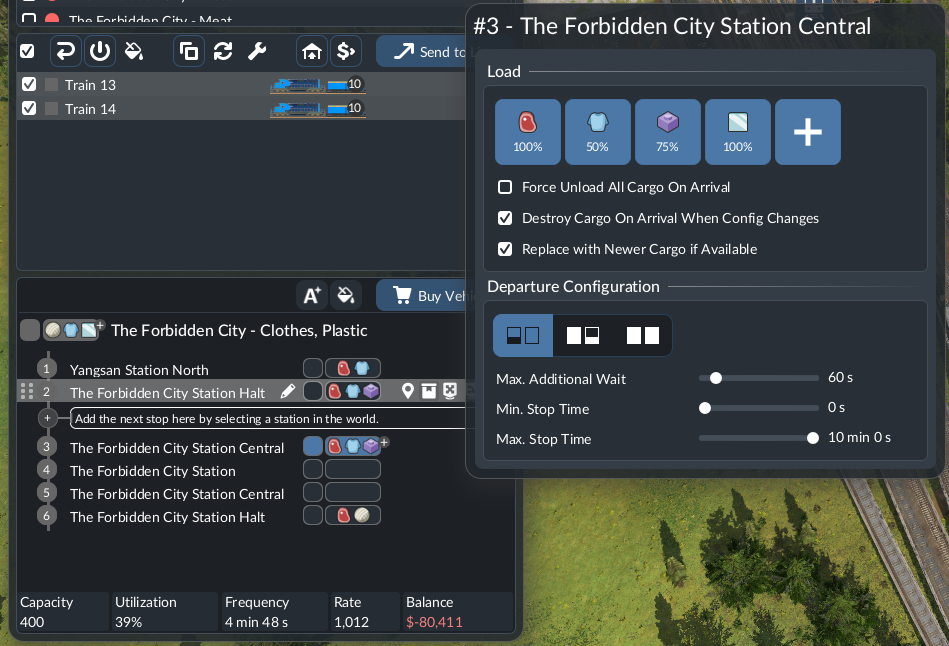
Write down what this stop should do: “deliver this item,” “collect a return load,” or both. In a simple drop-off test, inspect why the delivery item appears under Load. The official manual allows a stop to have no loading items; valid deliveries unload automatically at consumers.
Do not copy every checkbox in the reference image. It includes a selected “Destroy Cargo On Arrival When Config Changes” option. Review that setting before editing a loaded service; discarded cargo must not be mistaken for goods reaching your customer.
2. Test the player-reported fix on one arrival
A player reporting a vegetable delivery error later confirmed that removing the item from the unloading stop’s configuration solved their route. That is a useful first test for the same symptom, rather than evidence that every unloading failure has one cause.
- Record the item and quantity aboard immediately before the destination.
- Keep that item enabled at the source. For the diagnostic delivery-only stop, remove it from the destination’s Load list.
- Watch the next arrival and inspect the receiving stock or consumer activity at the same time.
- If the item stays aboard, keep the pickup setup that already works and examine the receiver below.
If the route intentionally collects the same item at this stop, do not permanently remove that function just to imitate the example. Test a simpler delivery arrangement separately and compare the result before changing the production service.
3. At a warehouse, check the exact module and item
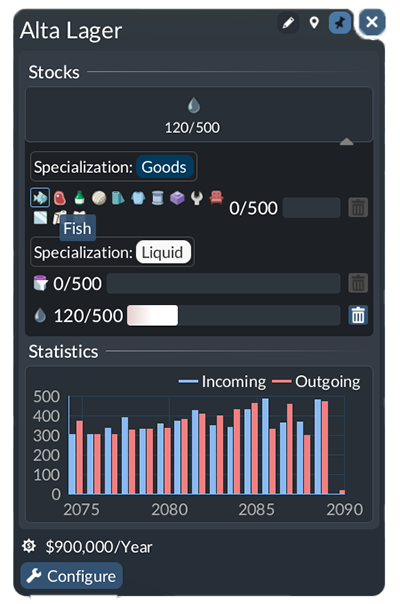
Open the receiving warehouse’s Stocks section. Compare the item aboard with the module’s selected item and available space. A specialised module stores one item: crude oil and fuel require separate modules even though both are Liquid. A Universal module can hold a mixture.
Also check that the warehouse is in the stop’s cargo catchment. Storing goods there is a transfer stage; factories and town buildings do not directly take its contents. If goods now reach the warehouse but never leave it, continue with the outbound transfer checks rather than undoing the successful arrival.
4. Decide whether delivery failed or the next stage stopped
- Cargo still aboard: capture the exact error, destination row and receiving setup. Check consumer suitability or warehouse acceptance before adding vehicles.
- Cargo appears in the warehouse: unloading worked. Investigate the outbound service.
- Cargo reaches a factory and is consumed: a later empty input stock is not enough to diagnose a failed delivery; watch the arrival and processing together.
- Cargo transfers, but very slowly: use the separate platform and handling-speed guide.
- Transfer finishes but the vehicle waits: inspect departure conditions.
A useful bug report includes your installed build, exact cargo, stop name, error text, before/after quantities and screenshots of the destination filter and receiver. That lets another player distinguish a reproducible fault from a route configured for a different job.
Sources and scope
Control meanings and warehouse rules: Urban Games’ Lines and Vehicles manual and Warehouses manual. The destination-filter case comes from the original poster’s follow-up in Trouble unloading Cargo. The procedure is independently organised from these sources; the community outcome is not a universal patch fix or a personal gameplay test. Images show the developer’s instructional setup, not the player’s save.
Vehicle never picks up the item? Start with cargo not loading. All Transport Fever 3 guides →